

Before you begin
- Add a valid payment method to the company on the Billing page. Without one, Sevalla rejects the database with
No valid payment method found. Add one at https://app.sevalla.com/billing/payment-methods to continue. - You need permission to create databases in the company, or in the project you’ll put the database in.
- Pick the location of the applications that will use the database: internal connections work only within one location.
Create the database
1
Open the create form
In the sidebar, click Databases, then click Create database. If the company has no databases yet, click Create a database.
2
Choose the engine and version
Under Database, click PostgreSQL, MySQL, MariaDB, Redis or Valkey, then choose the version. For PostgreSQL, turn on the extensions you need.
3
Check the credentials
Under Credentials, keep the generated Database name, Database user and Database password, or set your own.
4
Name the database
Under Details, enter the Display name, for example
orders-db. If your company has projects, choose a Project or None (company level).5
Choose the location
Under Location, choose the Data center where your applications run.
6
Choose the size
Under Resources, choose the Size. See Sizes.
7
Set up backups (OCI only)
In OCI locations, a Backups section appears. Keep External backups on to back the database up every day to a Sevalla bucket. See Backups.
8
Create it
Check the summary and the estimated cost, then click Create database.
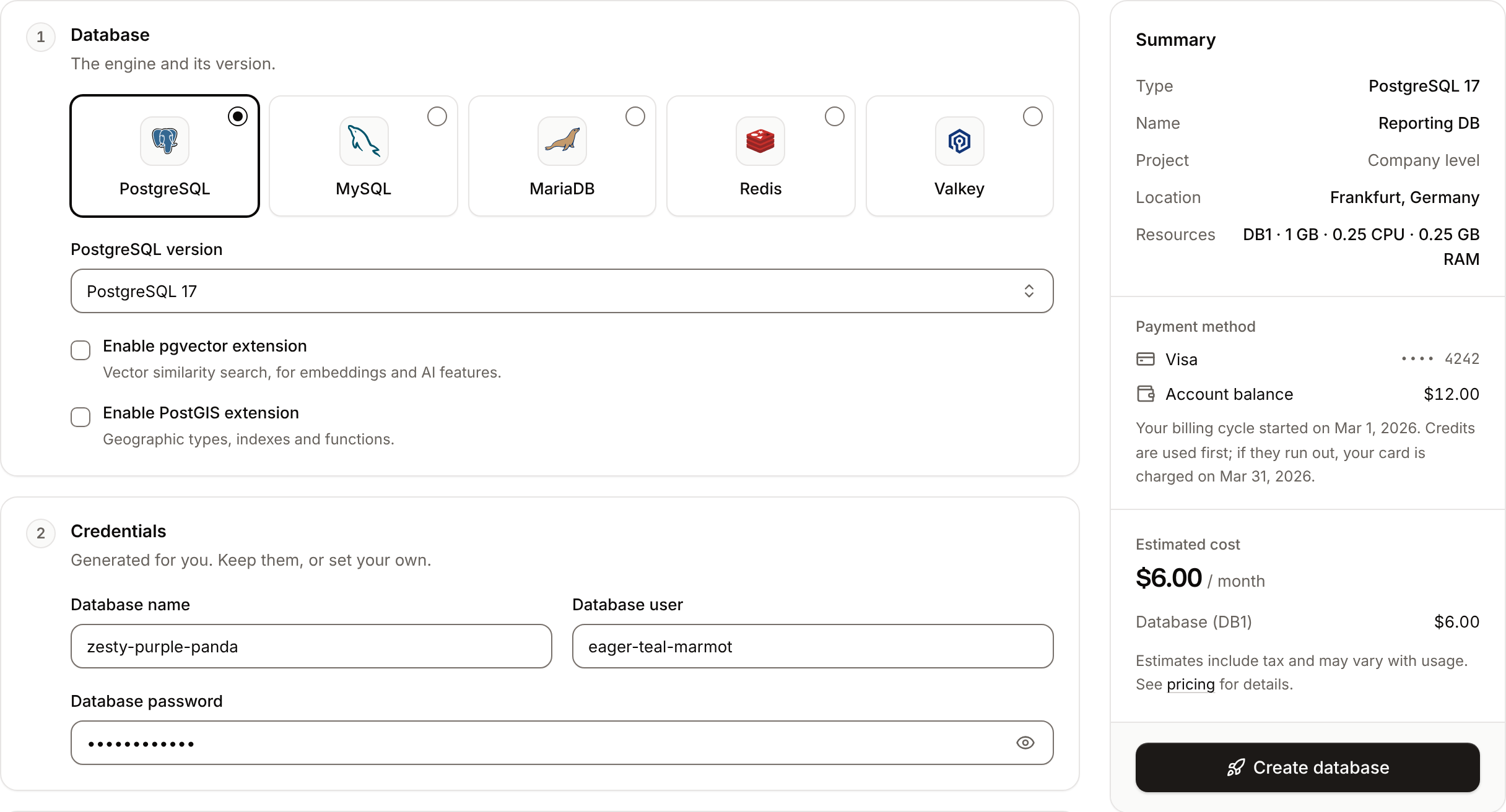
Form fields
Database
You can turn the extensions on only when you create the database.
Credentials
The form generates the credentials for you: a three-word name such asbrave-olive-tiger for the database and the user, and a 12-letter lowercase password.
You can’t change the database name or user later. You can change the password at any time.
Details
Sevalla also derives the database’s permanent name from the display name: lowercase, special characters removed, spaces turned into hyphens, cut to 27 characters, plus a random suffix, for example
orders-db-k3j4h. It appears in the database’s URL, its internal hostname and its external hostname, and it never changes. You can rename the display name later.
Location
You can’t move a database to another location. To move one, create a database in the new location and restore or import the data.
Resources
Choosing DB1 for MySQL or MariaDB shows DB1 is not recommended for production: those engines can run out of memory on DB1 under load.
Backups
This section appears only in OCI locations, and only if you can create object storage. Databases in Google Cloud locations get daily snapshot backups without any setup.
The bucket is billed as object storage. After the database is created, the bucket appears as a backup target on its Backups tab, where you can change the schedule and retention or add more targets. See External backups.
Summary
The summary card lists the Type, Name, Project, Location, Resources and, in OCI locations, Backups, with the Estimated cost per month including tax and the company’s Payment method.API and CLI
The API also accepts
extensions.enable_cron to create the pg_cron extension on PostgreSQL, which the dashboard doesn’t offer. If you omit db_user, Sevalla generates one.