

Before you begin
- A Django project deployed on Sevalla, as in Deploy Django.
Create a bucket
1
Create the bucket
In the sidebar, click Object storage, then click Create object storage. Enter
storefront-media as the Name, choose the Location closest to the application, and click Create object storage.2
Decide who can read the files
Keep the bucket private to serve each file through a link that expires. To serve files to anyone with a permanent URL, click the bucket’s Settings tab, click Enable public access under Public access, then click Enable public access in the dialog.
Add the bucket details to the application
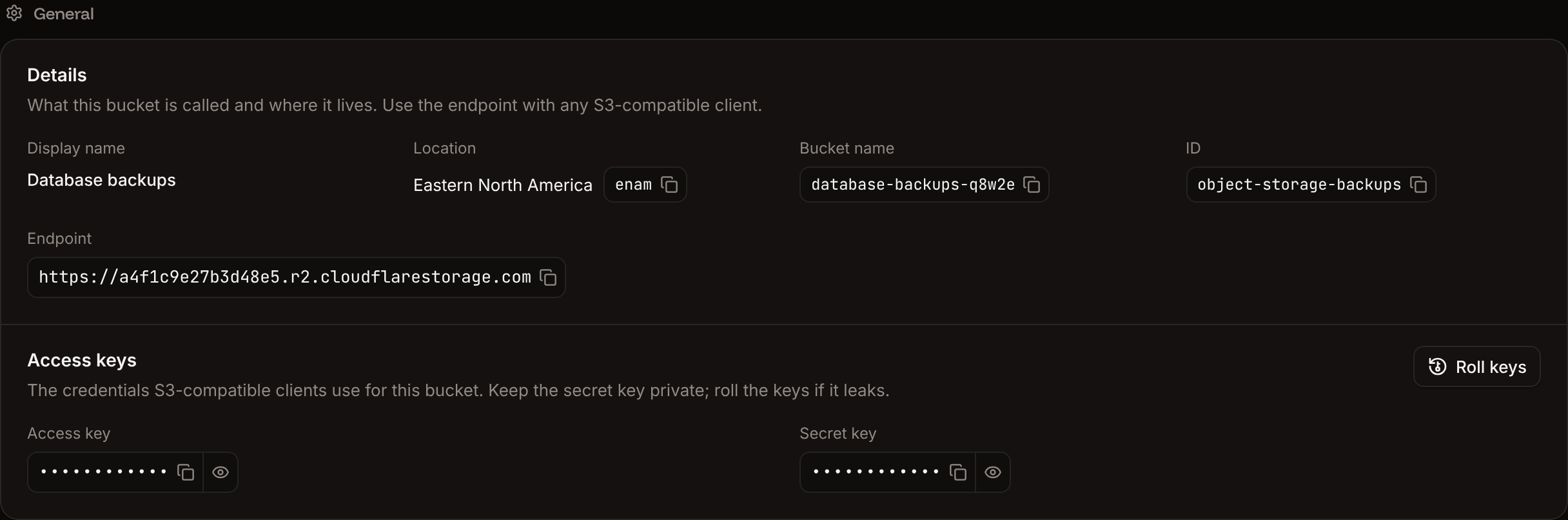
The values come from the bucket’s Settings tab. See Connect with the S3 API for each one.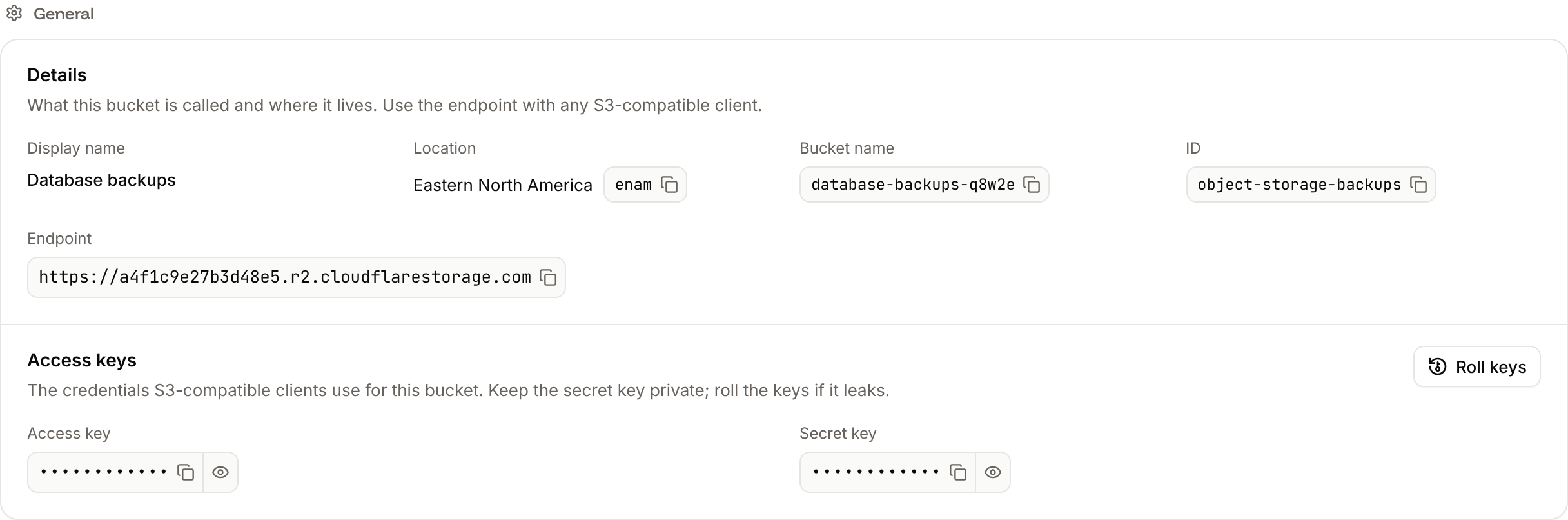
1
Open the environment variables
In the sidebar, click Applications, then click the application. Click the Environment variables tab.
2
Add the variables
Click Add environment variables. Add the variables, keep Available during runtime and Available during buildtime selected, and click Add environment variables.
collectstatic loads the settings. They apply with the next deployment, so add them before you deploy the new settings.
Install django-storages
Install the package with its S3 extra, which adds boto3, and updaterequirements.txt:
Configure the storage
Instorefront/settings.py, point the default storage at the bucket. Keep the staticfiles storage from the deploy guide:
storefront/settings.py
FileField and ImageField now saves to the bucket, and file.url returns a link that works for 1 hour (django-storages’ default querystring_expire is 3600 seconds). See presigned URLs.
For a public bucket, return permanent URLs on the bucket’s public domain instead. Add the S3_PUBLIC_DOMAIN variable to the application, then add two options:
storefront/settings.py
Verify
Click the application’s Web terminal tab, choose the Web process, and save a test file through Django’s storage:Hello from Sevalla. In the sidebar, click Object storage, click the bucket, and the Objects tab lists hello.txt. To remove it, run default_storage.delete('hello.txt') the same way, or delete it on the Objects tab. See Manage objects.
Serve static files from the bucket
WhiteNoise with the Sevalla CDN serves static files well for most projects. To serve them from the bucket instead, make the bucket public and give media and static files their own folders withlocation:
storefront/settings.py
whitenoise.middleware.WhiteNoiseMiddleware from MIDDLEWARE. The build’s collectstatic now uploads the static files to the bucket, so builds take longer, and every variable must stay Available during buildtime. Media files are public too, because public access applies to the whole bucket.