

- Destination
- Source IP
- Country
- Device type
- HTTP method
- Path
- User agent
- HTTP version
- Status code
Requests volume by country
The Requests volume by country chart shows the number of requests, ranked by the country from which they originated. You can zoom in and out of the map, and hover over a country to see the exact number of requests from that location. You can also filter the chart to include or exclude specific countries.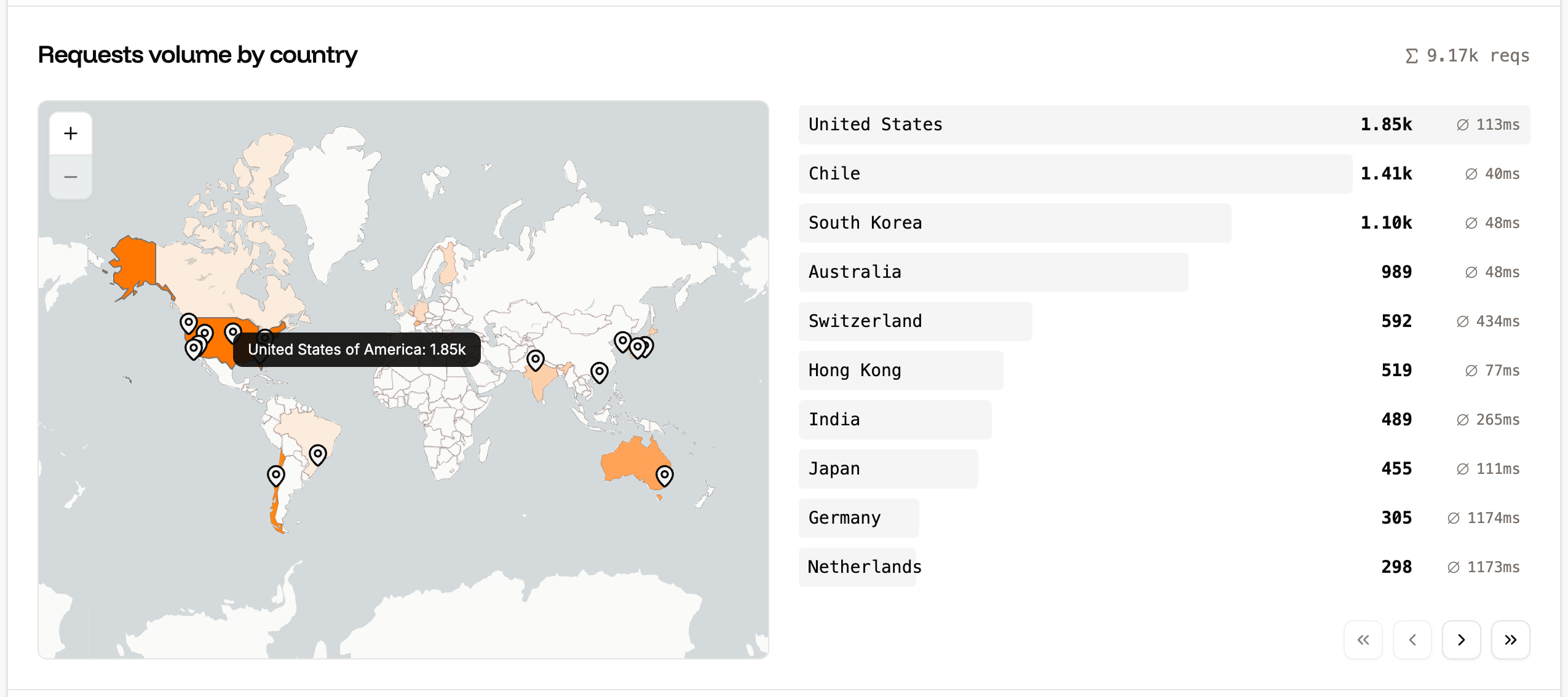
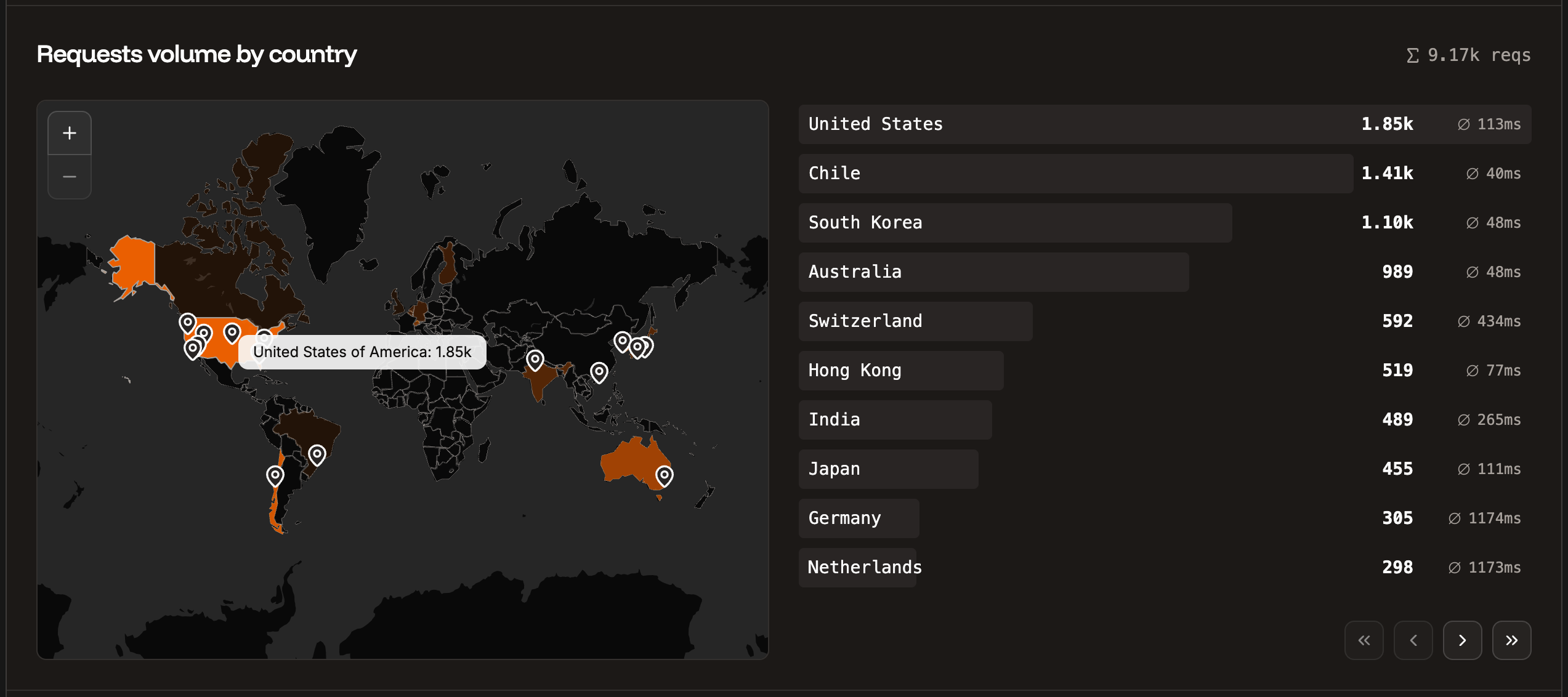
Requests volume by country load balancer analytics.
Response time
The Response time chart shows the average response time for all HTTP requests for the time period selected.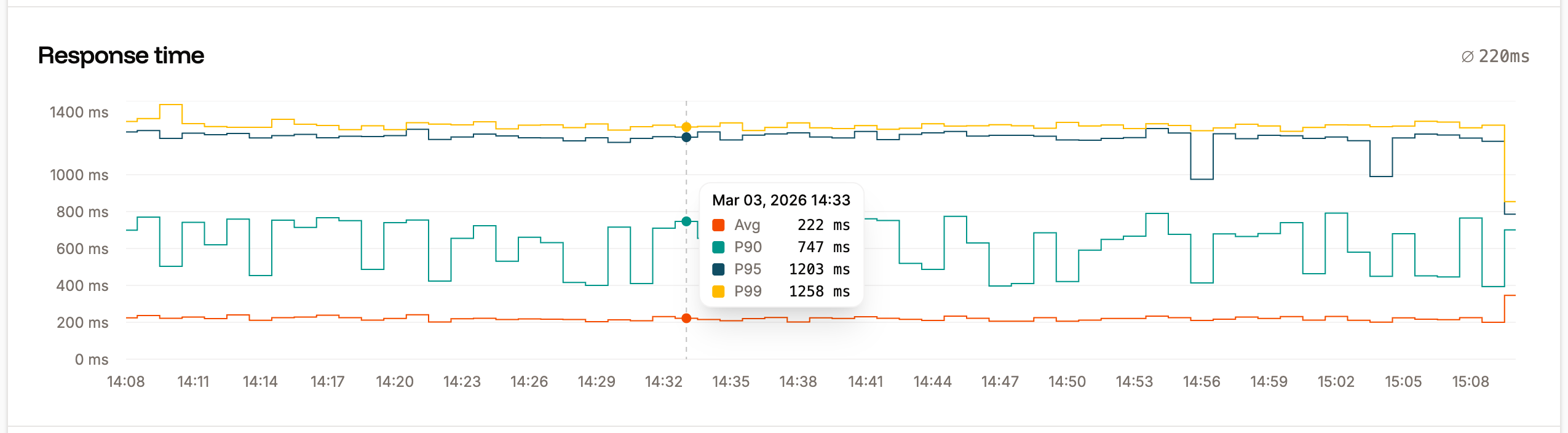
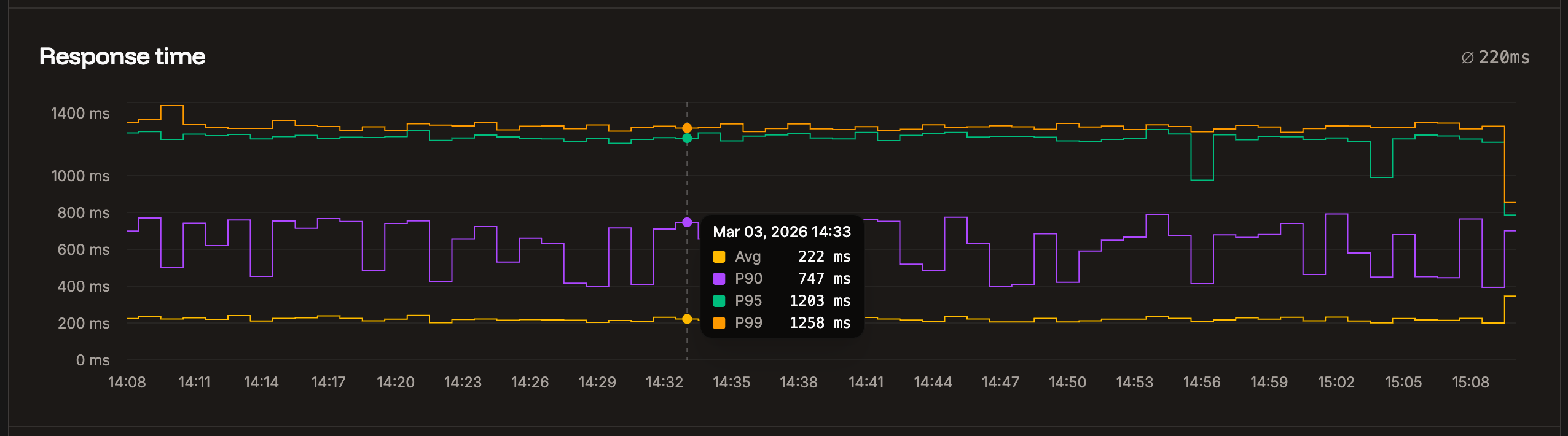
Response time load balancer analytics.
Status codes
The Status codes chart displays the total number of each status code returned for requests. This is useful for analyzing your site to identify when requests return codes other than 200.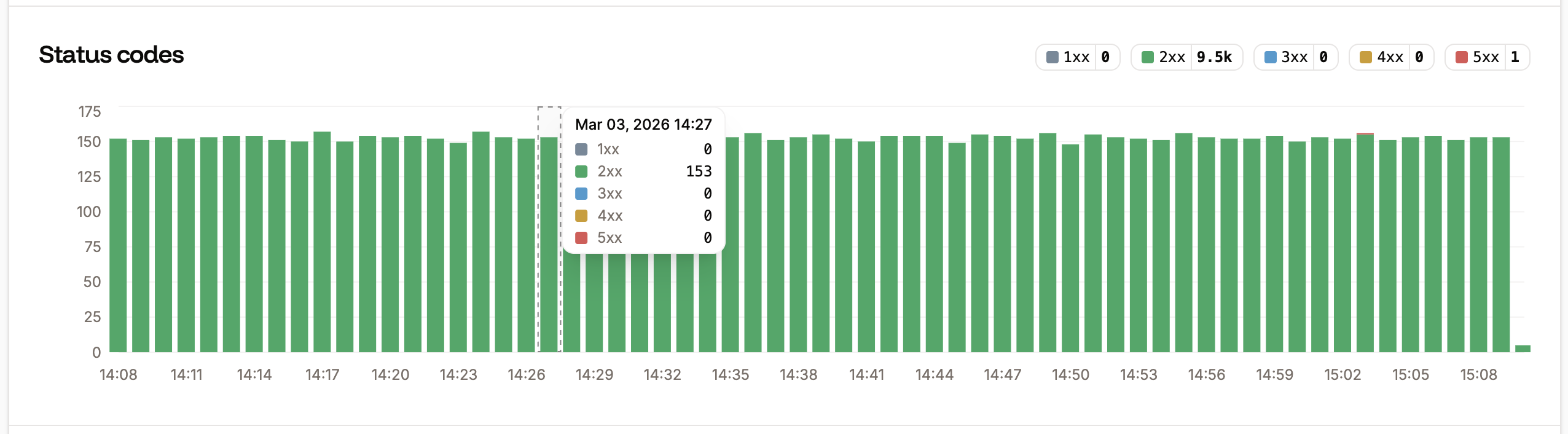
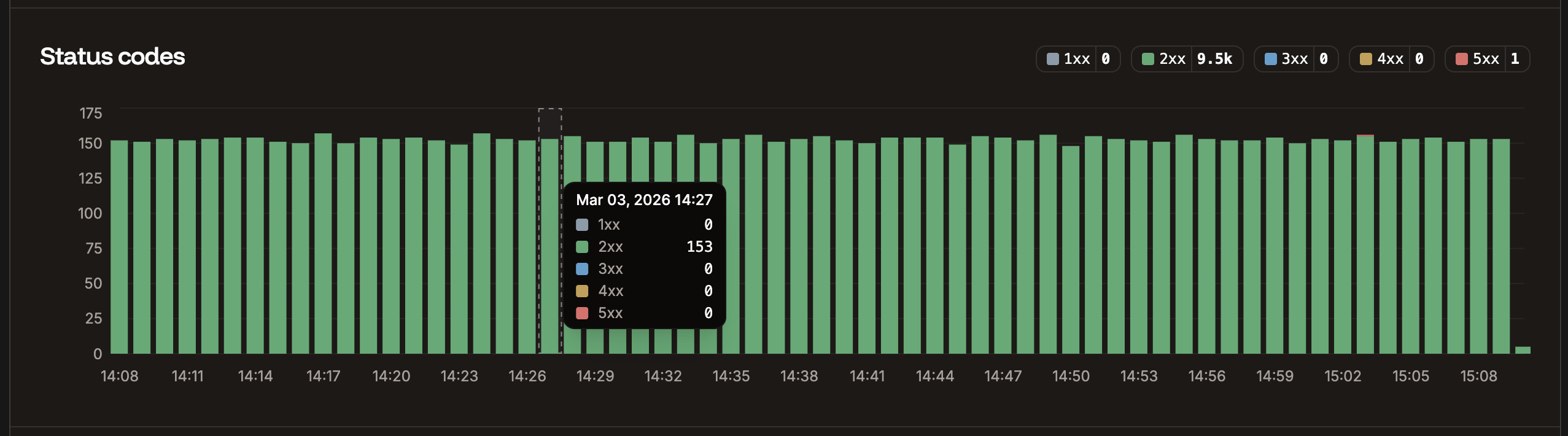
Status codes load balancer analytics.
Requests per minute
The Requests per minute chart shows the average requests per minute (RPM) of all HTTP requests for the time period selected.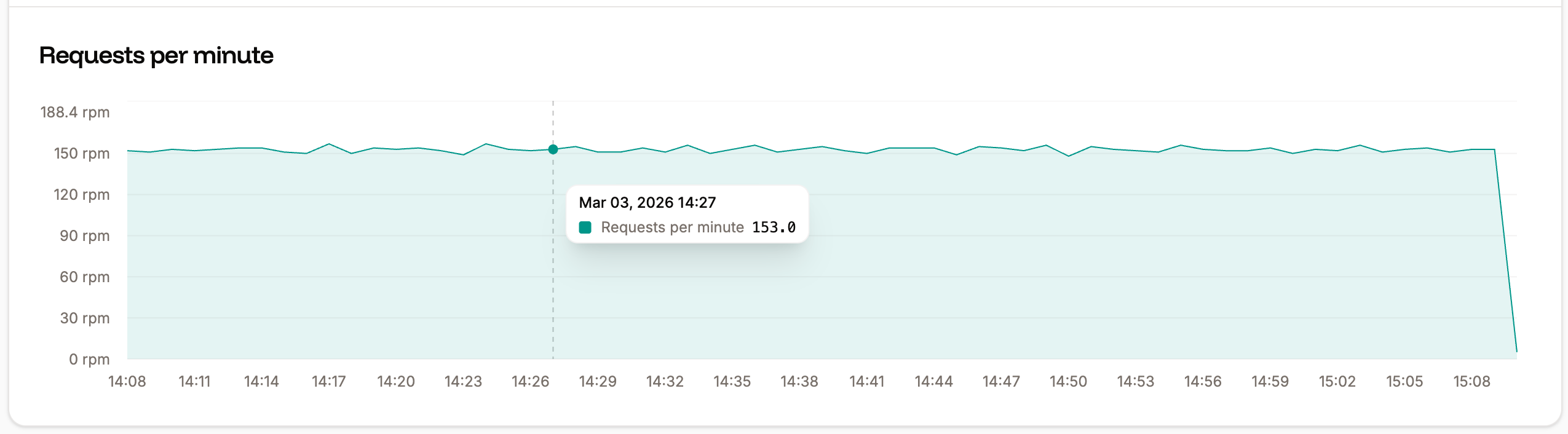
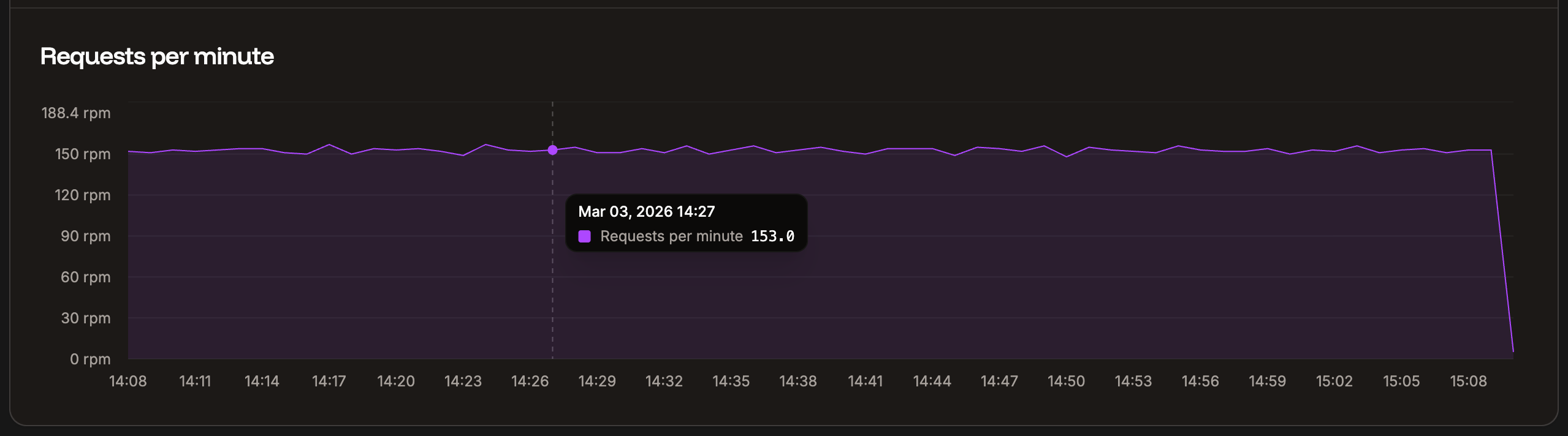
Requests per minute load balancer analytics.