

How the GitLab connection works
Connect GitLab
1
Start from a repository picker
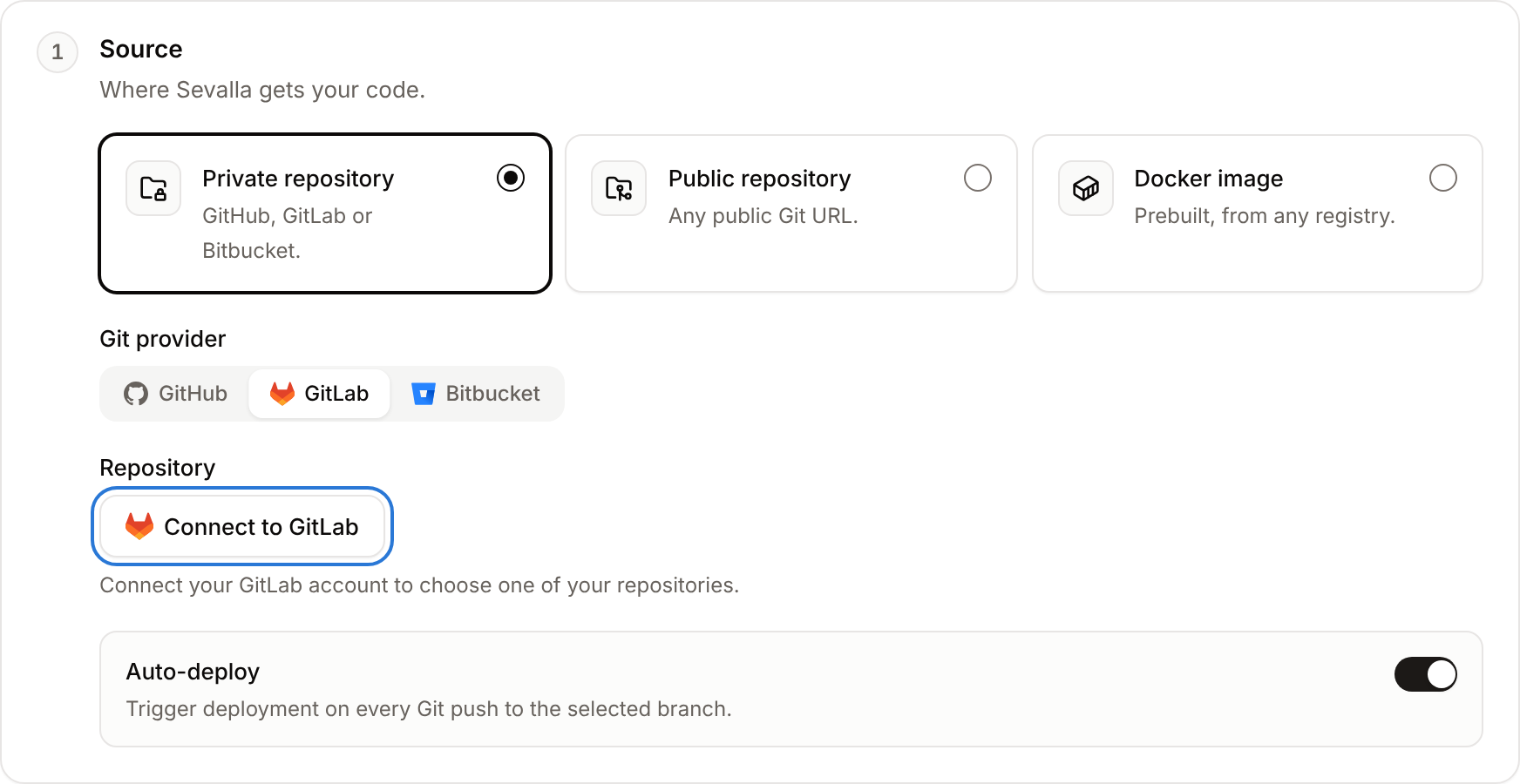
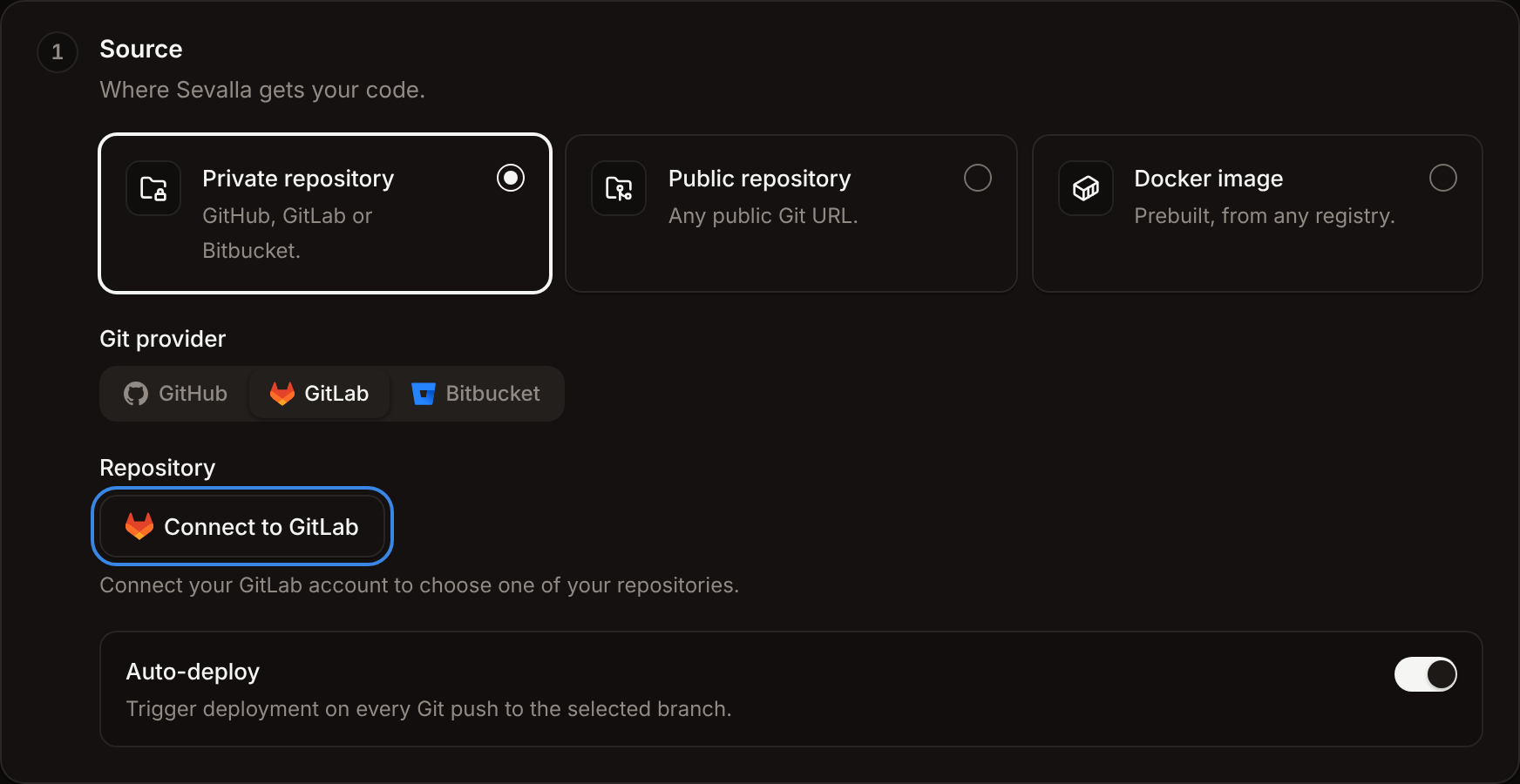
In the sidebar, click Applications, then click Create and Application. Under Source, keep Private repository, pick GitLab, then click Connect to GitLab. The same button shows when you create a static site or set up preview apps.
2
Authorize the application on GitLab
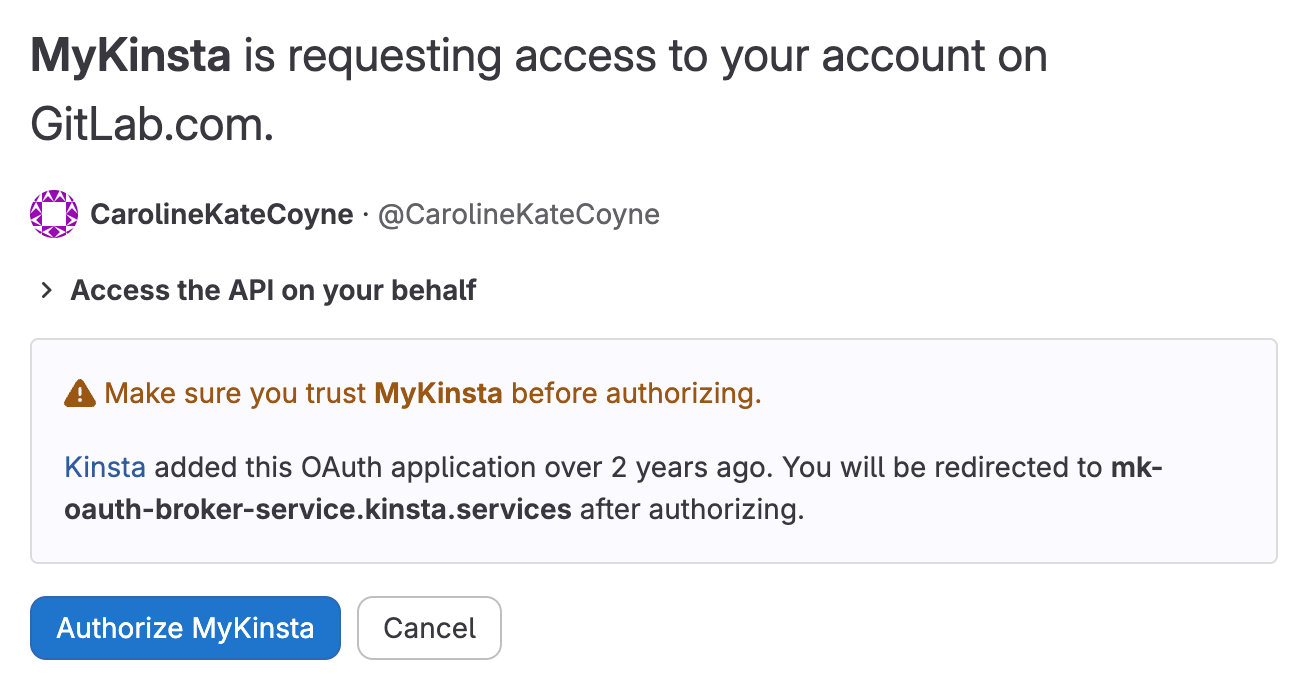
In the new tab, sign in to GitLab.com if needed, then click Authorize MyKinsta.
3
Go back to Sevalla
Return to the Sevalla tab. It picks up the connection on its own; if it doesn’t, click Check again.
Automatic deployments and the webhook
When you turn on automatic deployments for a service, or preview apps for a pipeline, Sevalla adds a webhook to the GitLab project, or updates the one it added earlier. You can see it in the project’s Settings > Webhooks on GitLab. Don’t delete it: without it, pushes and merge requests don’t reach Sevalla.GitLab lets only Maintainers and Owners of a project add webhooks. At least one Sevalla user with the Maintainer or Owner role on the project must have connected GitLab, or the webhook isn’t added and pushes don’t deploy.
Merge request preview apps
Pipelines with preview apps treat merge requests as pull requests:
The preview app’s status and link are posted as a comment on the merge request. GitLab doesn’t get deployment statuses from Sevalla.
Disconnect GitLab
1
Revoke in Sevalla
In the user menu, click My account. In Git login & repository access, click Revoke on GitLab’s Repository access line, then Revoke in the dialog.
2
Revoke on GitLab
If GitLab’s Login is disabled too, Sevalla opens GitLab’s Applications page in your user settings (
https://gitlab.com/-/user_settings/applications). Under Authorized applications, revoke MyKinsta.If a project is missing
For deployments that fail because a project isn’t available anymore, see Troubleshoot builds and deployments.