

How companies work
- One company per service. A service belongs to the company it was created in and can’t be shared with another company.
- Many companies per person. Your user account (your sign-in) can belong to any number of companies, with a different role in each. You switch between them in the sidebar.
- One owner per company. The person who creates a company is its company owner. Ownership moves only by transferring it to a company admin.
- Separate billing. Each company has its own payment method, billing details, credits and invoices. See How billing works.
- Up to 10 companies. You can own up to 10 companies. Companies you’re invited to don’t count toward this limit.
Switch companies
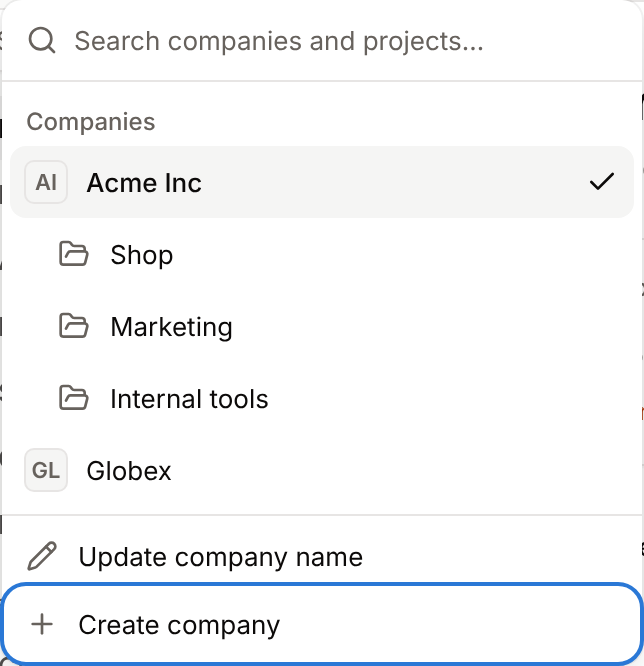
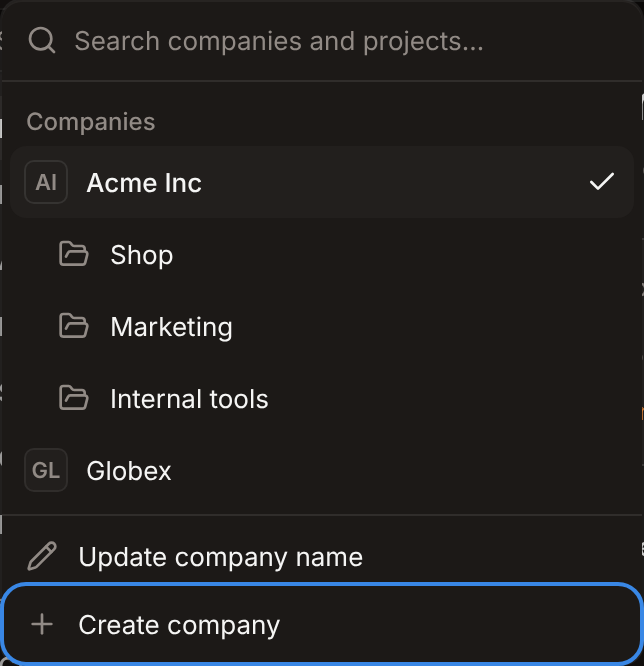
The company switcher at the top of the sidebar shows the company you’re in. Click it to see your companies and the projects of the current company, then click a company (or a project) to open it. Type in Search companies and projects… to filter a long list. When you switch from a service’s page, Sevalla opens the new company’s Home, because services belong to one company. When you switch from a section such as Billing or Usage, you stay in that section.Create a company
Anyone with a Sevalla account can create a company and becomes its company owner.1
Open the company switcher
At the top of the sidebar, click the company name, then click Create company.
2
Name the company
In Name, enter the company name (for example,
Acme Inc), then click Create company. You can update the name later.3
Add billing details and a payment method
Sevalla opens the new company on Last step before using Sevalla. Enter the card and the billing details, then click Complete setup. See Add your first payment method.
Company name contains non-alphanumeric unicode characters.
If you aren’t part of any company (for example, after you delete your last one), Sevalla shows a Create your company page when you sign in. To join an existing team instead, ask an owner or admin of that company to invite you.
Rename a company
Only company owners and admins can update the company name.
1
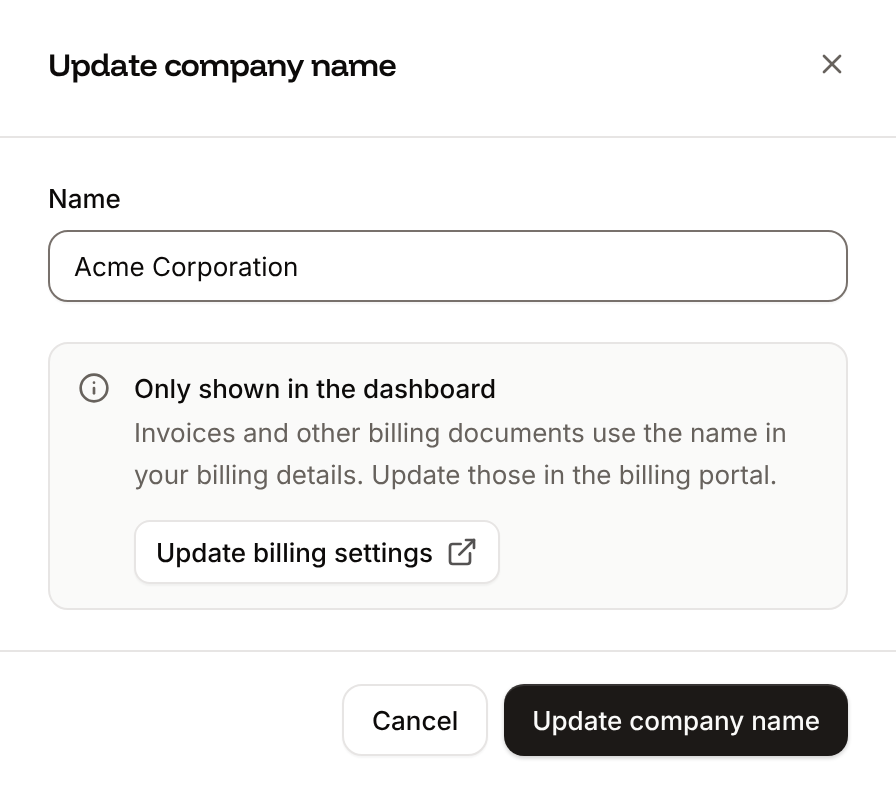
Open the company switcher
At the top of the sidebar, click the company name, then click Update company name.
2
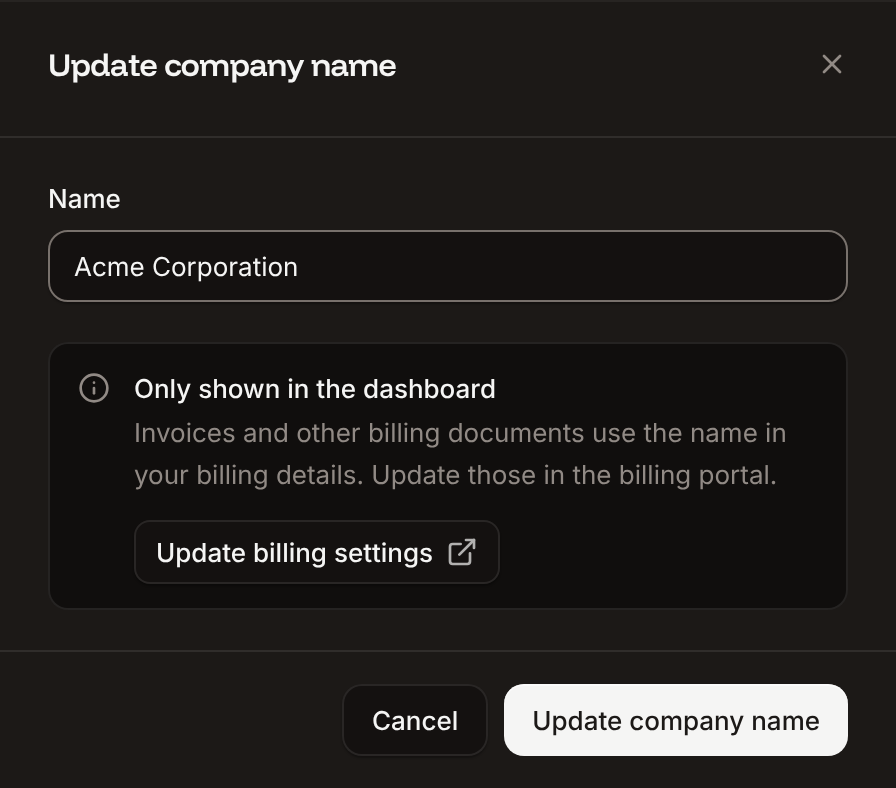
Enter the new name
In Name, enter the new name, then click Update company name.
Delete a company
Deleting a company cancels its Sevalla subscription, settles its final balance and deletes the company right away. Only the company owner can delete a company, from the Billing page.Before you delete a company
- Delete every project and service first. Sevalla refuses to delete a company that still has projects, applications, databases, static sites, object storage buckets, load balancers or pipelines. The delete sheet lists what’s left, with a count for each type. Each product’s settings page explains how to delete it, for example delete an application.
- Settle unpaid invoices. A suspended company can’t be deleted: the attempt fails with
The service is suspended.See Failed payments. - Keep the company instead, if someone else will run it. Transfer ownership to a company admin, and they can keep using it.
Delete the company
1
Open the danger zone
In the sidebar, under Company, click Billing. At the bottom of the page, in Danger zone, click Delete company.
2
Say why you're leaving
Under Why are you leaving?, pick a reason: Too expensive, Missing features, Stability or reliability issues, Switching to another provider, Project ended / no longer needed or Other (which asks you to tell more). Optionally add feedback, then click Continue.
3
Review and confirm
Read what happens. If this is your only company, you can select Also delete my user account (see Delete your account). Type the company name to confirm, then click Delete company.
Company deleted. Switched to <company>. If it was your last company, Sevalla signs you out.
What happens when you delete a company
- Your subscription ends and the final balance is settled immediately. Unbilled usage goes on a final invoice. A final invoice over 1 or less is forgiven. Unused credits are removed.
- The company and its data are deleted. Its users lose access, and its single sign-on settings are removed.
- Your user account stays, unless you selected Also delete my user account.
Your final invoice could not be charged. Settle your outstanding balance and try again to cancel. Update your payment method, then try again.
Companies shared with MyKinsta
A company can also be used in MyKinsta, Kinsta’s WordPress hosting dashboard. If the company has a WordPress hosting plan or WordPress sites there, deleting it from Sevalla only cancels the Sevalla subscription and settles the Sevalla balance. The company, your user account and everything in MyKinsta stay, and Sevalla showsSevalla subscription cancelled. after it reloads.