

shop.example.com, that serves one of your applications, static sites or load balancers over HTTPS. You add it on the service’s Domains tab, prove you own it with DNS records, then point it at Sevalla, and Sevalla issues and renews its SSL certificate. Every service also gets a free Sevalla domain, such as storefront-x7k2m.sevalla.app, that works from the start.
How custom domains work
Sevalla serves every domain through Cloudflare, in front of your service, using Cloudflare for SaaS custom hostnames. A custom domain goes through three steps, shown in the DNS records sheet as Add domain, Verify domain and Point domain: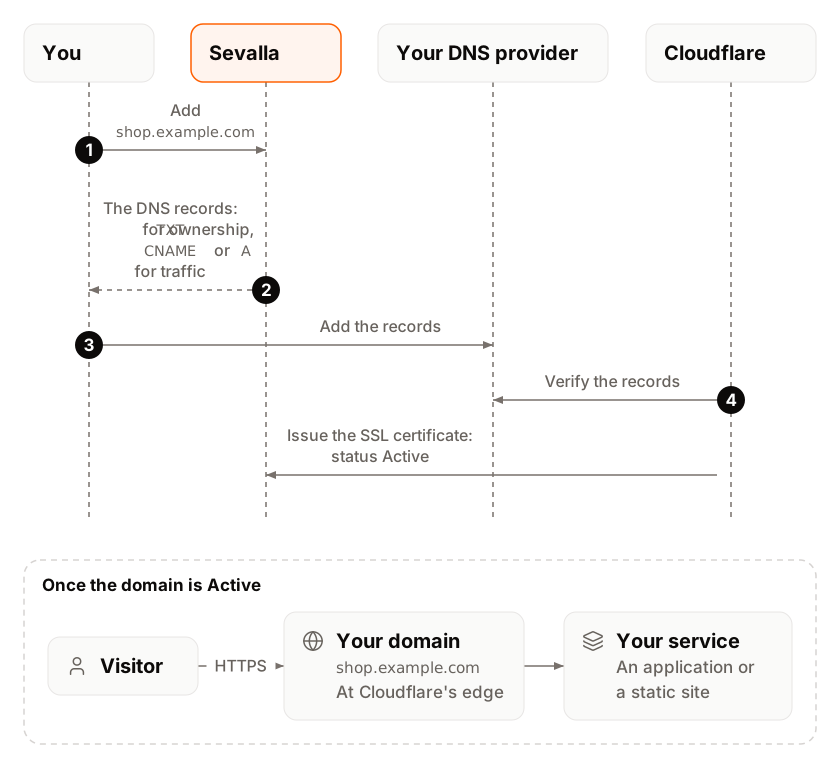
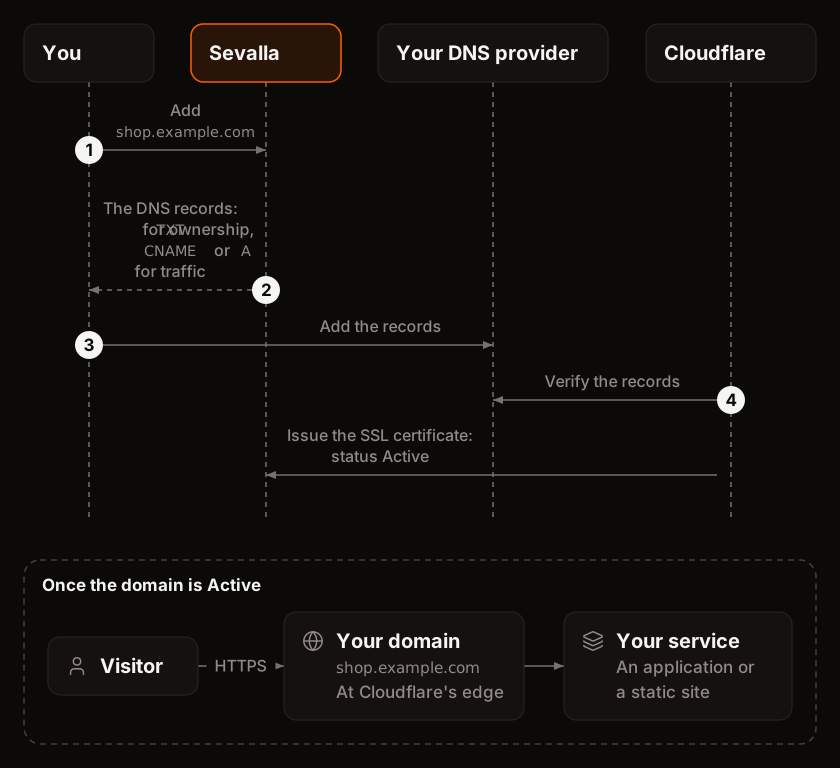
Sevalla checks a domain in Verification or Pointing every 30 minutes for 7 days after you add it, and every 10 seconds while its DNS records sheet is open. A domain still in Verification after 7 days becomes Timed out. In the API, the statuses are
VERIFICATION, POINTING, ACTIVE and TIMED_OUT.
Sevalla domains and differences between services
Every application, static site and load balancer gets a Sevalla domain when you create it, listed under Sevalla domains on its Domains tab. It’s the service’s primary domain until you make another one primary, and it’s covered by Sevalla’s own certificate.<name> is the service’s generated name, like storefront-x7k2m. Services created long ago can still have a kinsta.app or kinsta.page domain, which works the same way.
Object storage buckets are different: a bucket with public access gets a <bucket-name>.sevalla.storage domain and can’t have custom domains.
An application’s web process on the H1 size (the Hobby size) can’t have custom domains: the Custom domains card says Custom domains aren’t available on the Hobby size. Move the web process to a larger size to add one., with a Modify process button. The other way round, Sevalla refuses to move a web process to the Hobby size while the application has a custom domain. See Scaling.
Before you begin
- Access to the DNS settings of the domain, at your registrar or DNS provider.
- Permission to update the service. People who can only view it can open a domain’s DNS records but not change anything.
- For an application, a web process on a size larger than H1, and a payment method or credits. Without them, Add custom domain is disabled with
Add a payment method or credits to add custom domains.
Add a domain
1
Open the Domains tab
In the sidebar, click Applications, Static sites or Load balancers, then click the service. Click the Domains tab.
2
Open the Add custom domain sheet
Under Custom domains, click Add custom domain.
3
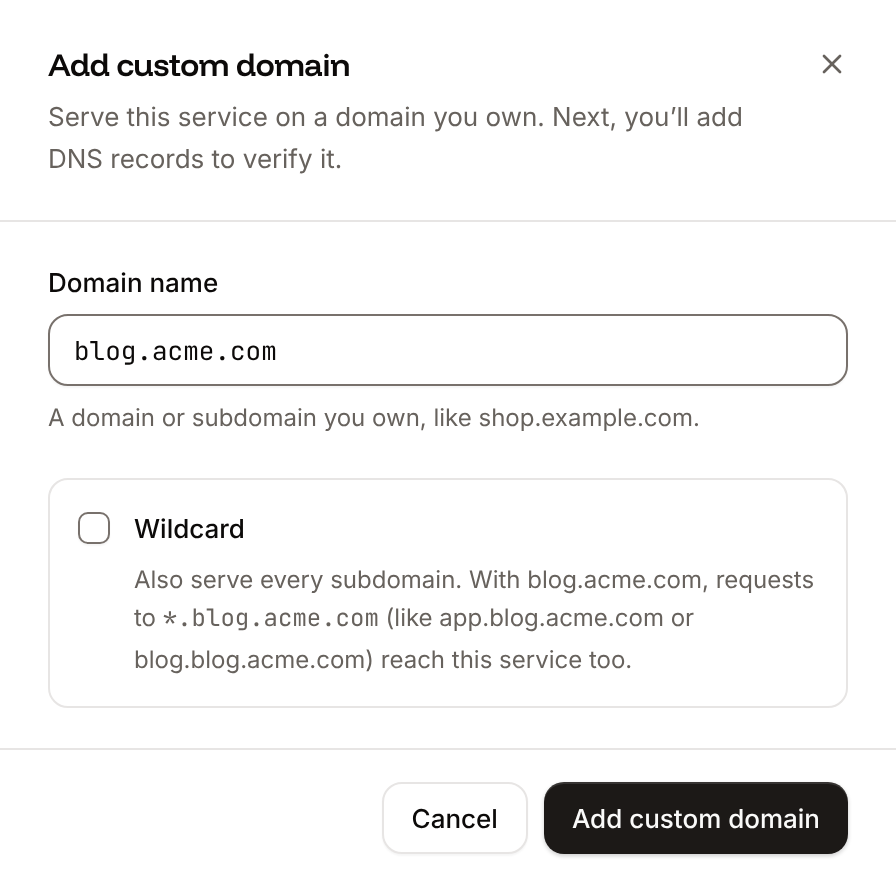
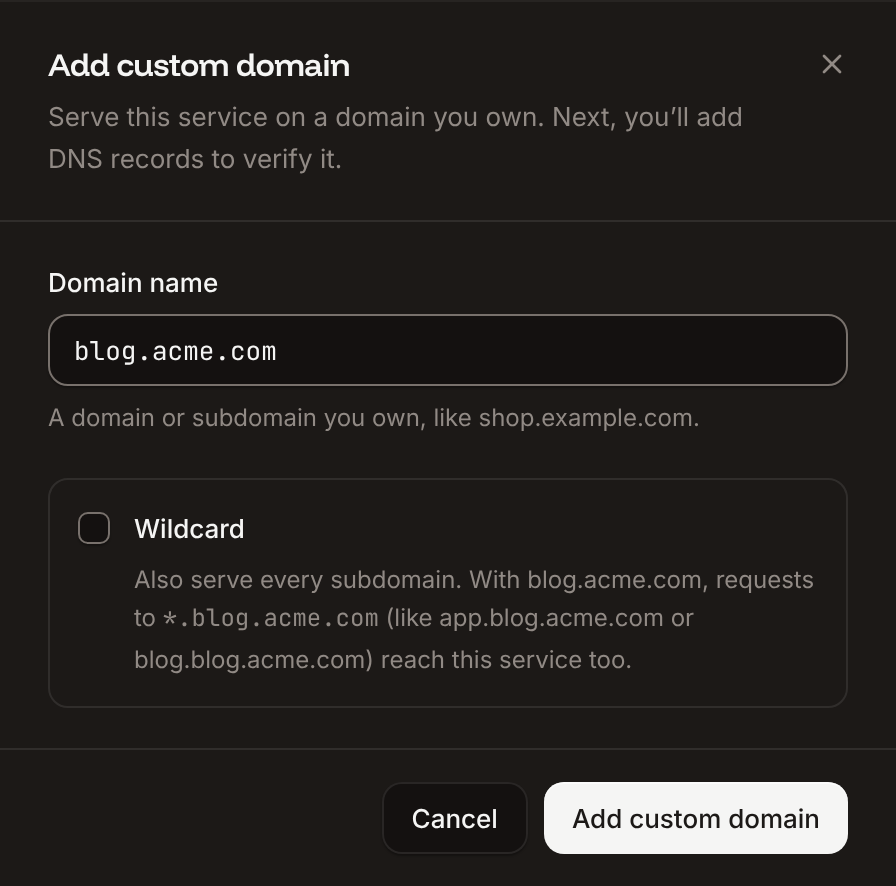
Enter the domain
In Domain name, enter the domain or subdomain, such as
shop.example.com or example.com. Sevalla removes https://, paths and uppercase letters for you.4
Choose whether to include subdomains
Select Wildcard to also serve every subdomain of it. See Wildcard domains.
5
Add it
Click Add custom domain.
Verify the domain
The Verify domain step lists two records that prove you control the domain and let the certificate authority issue its certificate. Each Name shows twice: the full name and the short one. Some DNS providers, such as Namecheap and Squarespace, add your domain to the name for you; use the short one there.1
Open your DNS provider
Sign in where your domain’s DNS is managed and open its DNS records.
2
Remove conflicting records
Delete any existing
A or CNAME record on the domain you’re adding, and old _cf-custom-hostname or _acme-challenge records from an earlier attempt.3
Add the records
Add each record with the exact type, name and value from the sheet. Copy them with the copy buttons. Leave the TTL on Auto or a few minutes.
4
Wait for the check
Keep the DNS records sheet open, or click Refresh records.
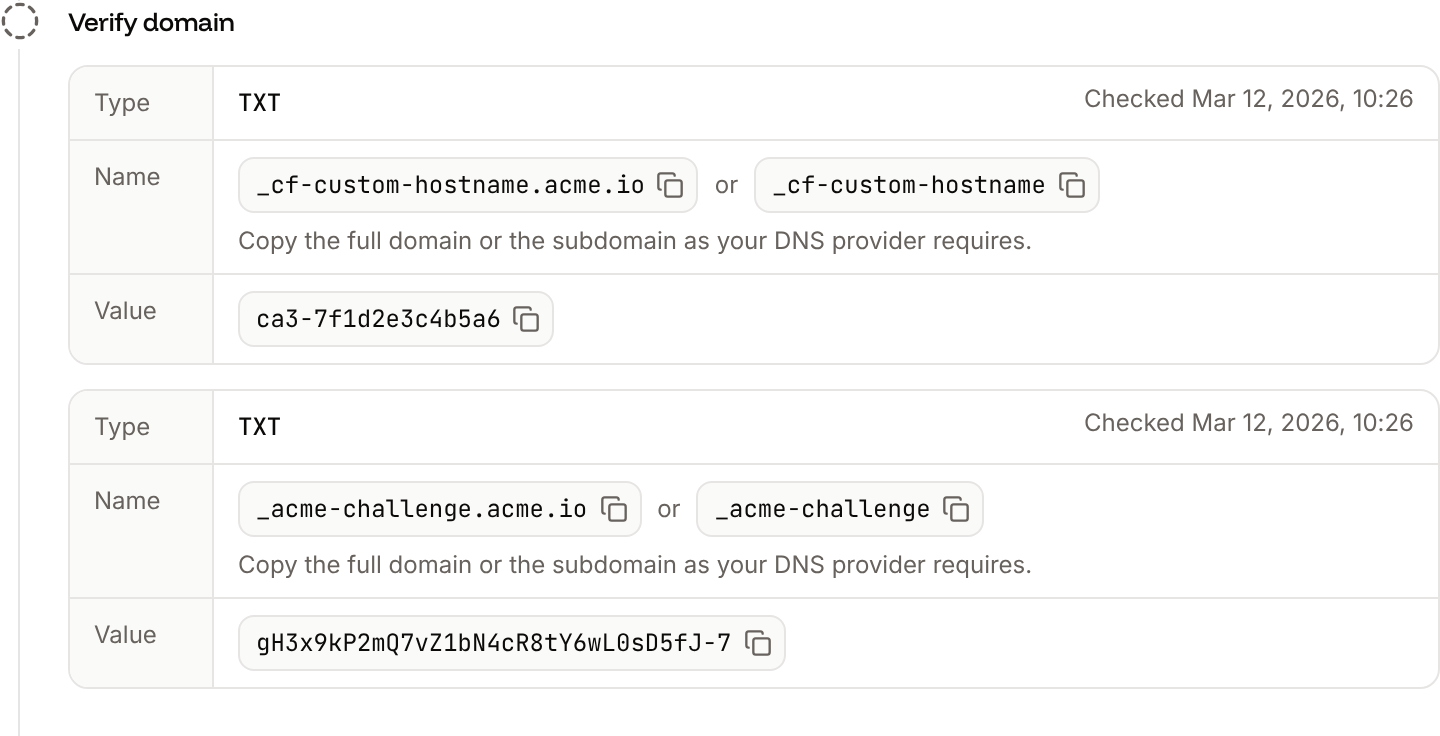
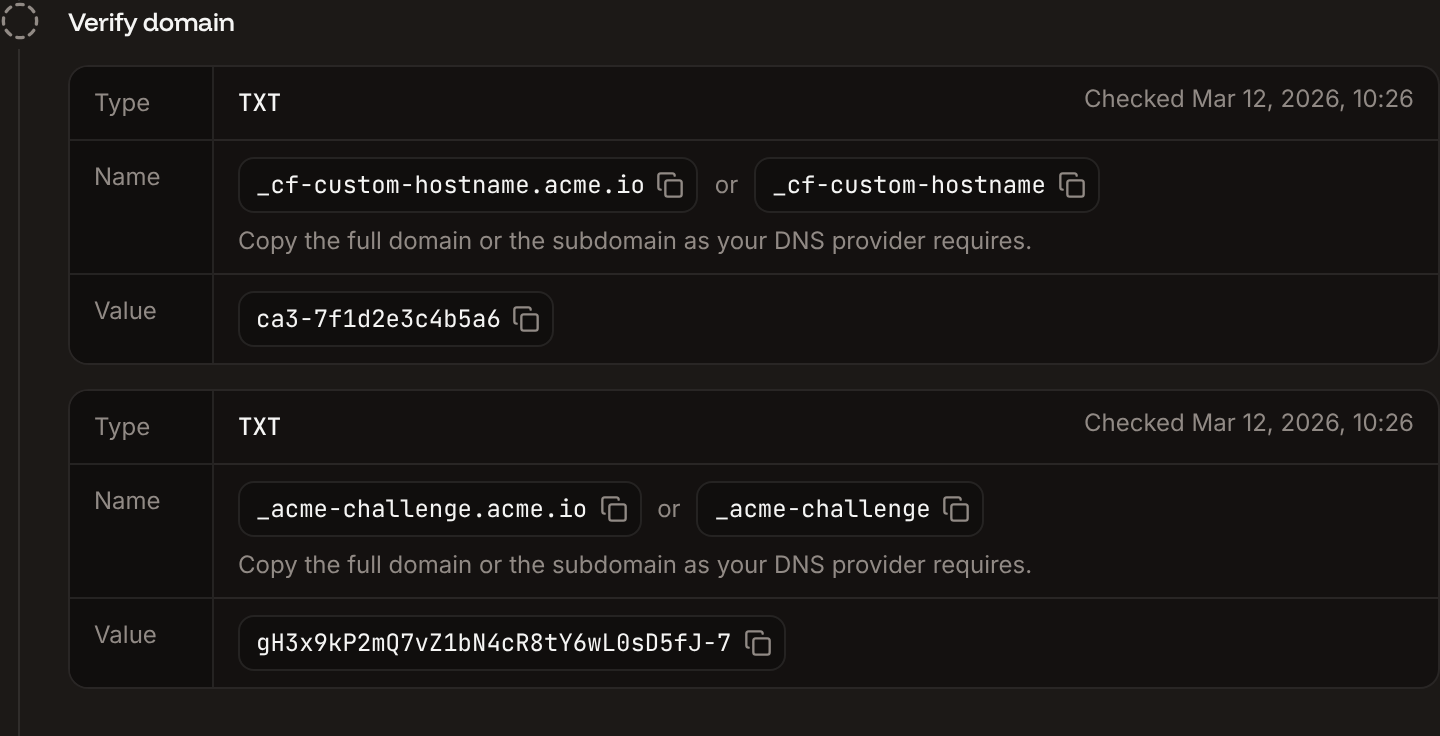
The last check found problems. If your domain’s DNS is on Cloudflare, the verification record is the pointing record instead: see Domains on Cloudflare DNS.
Point the domain
The Point domain step shows the record that sends the domain’s traffic to Sevalla. Its type depends on where your DNS is:
A wildcard domain gets a second record of the same type for
*. the domain, such as *.example.com.
1
Add the record
At your DNS provider, add the record from the Point domain step. If the domain already has
A, AAAA or CNAME records pointing elsewhere, delete them: every A record of the domain must point at Sevalla.2
Wait for the check
Keep the sheet open, or click Refresh records.
https://shop.example.com serves the service. For applications and static sites, Sevalla redirects http:// requests to https:// with a 301. Open the domain in a private window to check.
Root domains and subdomains
Each hostname is its own domain in Sevalla, with its own records, and Sevalla doesn’t redirect one to another.
For a root domain such as
example.com, use the A record from the Point domain step: most DNS providers don’t allow a CNAME record on the root. To send visitors from one hostname to the other, redirect in your application, or use redirects on a static site.
Wildcard domains
A wildcard domain serves the domain and every subdomain of it with one certificate:example.com with Wildcard also serves app.example.com, blog.example.com and any other subdomain. You choose it when you add the domain; to change it, delete the domain and add it again.
A wildcard domain needs three records: the ownership TXT record, an _acme-challenge CNAME record (not TXT) that lets the certificate renew, and the pointing record for both the domain and *. the domain. An application gets the requested hostname in the Host header, so it can tell subdomains apart. The Custom domains list shows a Wildcard badge on it.
Domains on Cloudflare DNS
If your domain’s nameservers are Cloudflare’s, Sevalla detects it and changes the records:- The Verify domain step asks for the
CNAMEpointing record instead of the ownershipTXTrecord. The_acme-challengerecord stays. - The Point domain step uses a
CNAMErecord, which Cloudflare also accepts on the root domain.
CNAME record to DNS only (grey cloud) until the domain is Active: a proxied record hides its target, so verification can’t complete. Once it’s active, you can turn the proxy back on (orange cloud). Your traffic then passes through your Cloudflare zone and Sevalla’s, which has two consequences:
- Your zone’s cache sits in front of Sevalla’s CDN and edge caching, and purging Sevalla’s cache doesn’t purge yours. Purge both when you troubleshoot stale content.
- Your zone’s SSL/TLS mode must be Full or Full (strict). With Flexible, your zone connects to Sevalla over HTTP, Sevalla redirects to HTTPS, and visitors get a redirect loop.
SSL certificates
Sevalla issues a certificate for every custom domain once it’s verified, and renews it automatically while the_acme-challenge record is in place. You don’t upload or renew anything.
If your domain has
CAA records, they must allow the certificate authority: add CAA 0 issue "pki.goog" (and CAA 0 issue "letsencrypt.org" for an internationalized domain), or remove the CAA records. Otherwise the certificate isn’t issued and the domain stays in Verification.
To use your own certificate, add the domain with the API and send custom_ssl_cert and custom_ssl_key (PEM) with it: see Add application domain. The dashboard doesn’t take certificates.
Set the primary domain
The primary domain is the address Sevalla shows and links to for the service. It doesn’t redirect your other domains: all of them keep serving the service. Only one domain is primary, and only an enabled domain with the status Active can become primary. A new custom domain doesn’t become primary on its own.1
Open the domain's menu
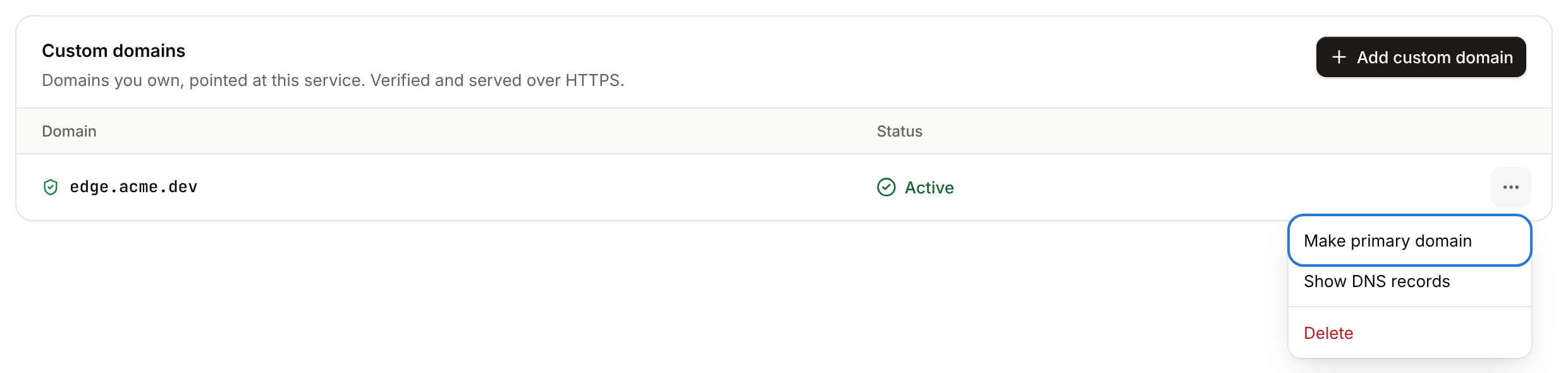
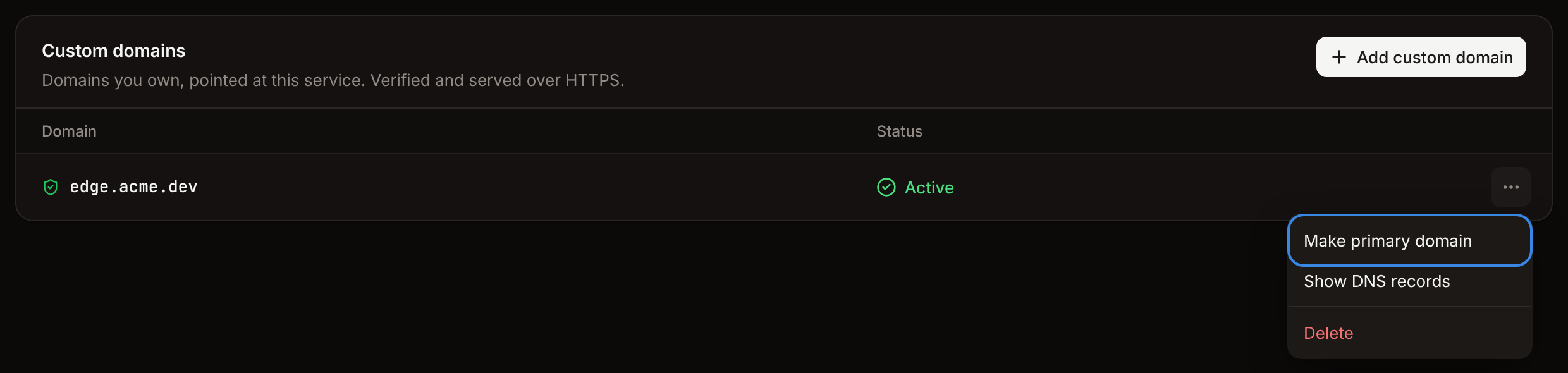
On the service’s Domains tab, open the ⋯ menu of the domain.
2
Make it primary
Click Make primary domain, then click Set as primary in the Set primary domain dialog.
Rename a Sevalla domain
You can change the part of a Sevalla domain before.sevalla.app, .sevalla.page or .sevalla.net.
1
Open the domain's menu
On the service’s Domains tab, under Sevalla domains, open the domain’s ⋯ menu and click Update.
2
Enter the new name
In Domain name, enter 3 to 63 letters, numbers and hyphens.
3
Save
Click Update domain.
Only an enabled Sevalla domain can be renamed.
Disable a Sevalla domain
Disabling the Sevalla domain makes the service stop answering on it, for example once your custom domain is live. Make the custom domain primary first.1
Open the domain's menu
On the service’s Domains tab, under Sevalla domains, open the domain’s ⋯ menu and click Disable.
2
Confirm
Click Disable domain.
Delete a custom domain
1
Open the domain's menu
On the service’s Domains tab, open the custom domain’s ⋯ menu and click Delete.
2
Confirm
Click Delete domain.
IP addresses
The IP address in theA record belongs to Cloudflare, which runs in front of every Sevalla service. It doesn’t show where your service runs and doesn’t add latency: your service runs in the location you chose. Sevalla’s IP addresses are shared by Sevalla customers only. We don’t offer dedicated IP addresses.
API and CLI
The CLI commands for static sites and load balancers are the same under
sevalla static-sites domains (with --site-id or <site-id>) and sevalla load-balancers domains (with --lb-id or <lb-id>). The CLI adds domains without the wildcard option; use the dashboard or the API for wildcard domains.