

How deployments work
A deployment goes through three steps, shown at the top of its page:- Queued: it waits for the application’s previous deployment to finish.
- Build: Sevalla clones the repository at the commit and builds a container image with the application’s build strategy. The build is Skipped for a Docker image source, a restart, a rollback and a pipeline promotion, which reuse an existing image.
- Rollout: Sevalla runs the jobs set to run before the deployment, rolls the image out to the web process, then the background workers, then the cron jobs, one after another, and finally runs the jobs set to run after it. See Processes for jobs and their start policies.
Deployment statuses
One deployment at a time
An application deploys one deployment at a time. A deployment you start while another one runs waits as Queued and starts when the running one finishes, in the order they were started. A new deployment never cancels the running one, and every push, click or hook call gets its own deployment: three pushes in a row build three times. Different applications deploy in parallel.Zero-downtime rollouts
Sevalla rolls out each process gradually: it starts new instances, sends them traffic once they’re ready, and only then stops old instances. An old instance is taken out of traffic, then getsSIGTERM and the rest of its 30-second shutdown to finish its requests; see How processes run.
“Ready” means the web process’s readiness probe passes. Without a readiness probe, an instance counts as ready as soon as its container starts, which can be before your server listens on its port, so visitors can get errors for a few seconds. Add a readiness probe under Health checks when you update the web process; see Processes.
Time limits and failures
When a deployment fails during the build or a job that runs before it, nothing changes: the previous version keeps running. When a process’s rollout fails, that process goes back to its previous version, but processes rolled out before it keep the new one. The application’s status changes to Deployment failed in both cases. Troubleshoot builds and deployments lists the common errors.
Deploy your application
Deploying needs permission to update the application.
1
Open the deploy sheet
In the sidebar, click Applications, then click the application. On the Deployments tab, click Deploy now.
2
Choose what to deploy
For a Git source, check the Branch. It starts on the application’s default branch, and Sevalla deploys its latest commit. To deploy an earlier commit, paste its full SHA or its commit link in Commit. For a Docker image, see Deploy a Docker image.
3
Deploy
Click Deploy.
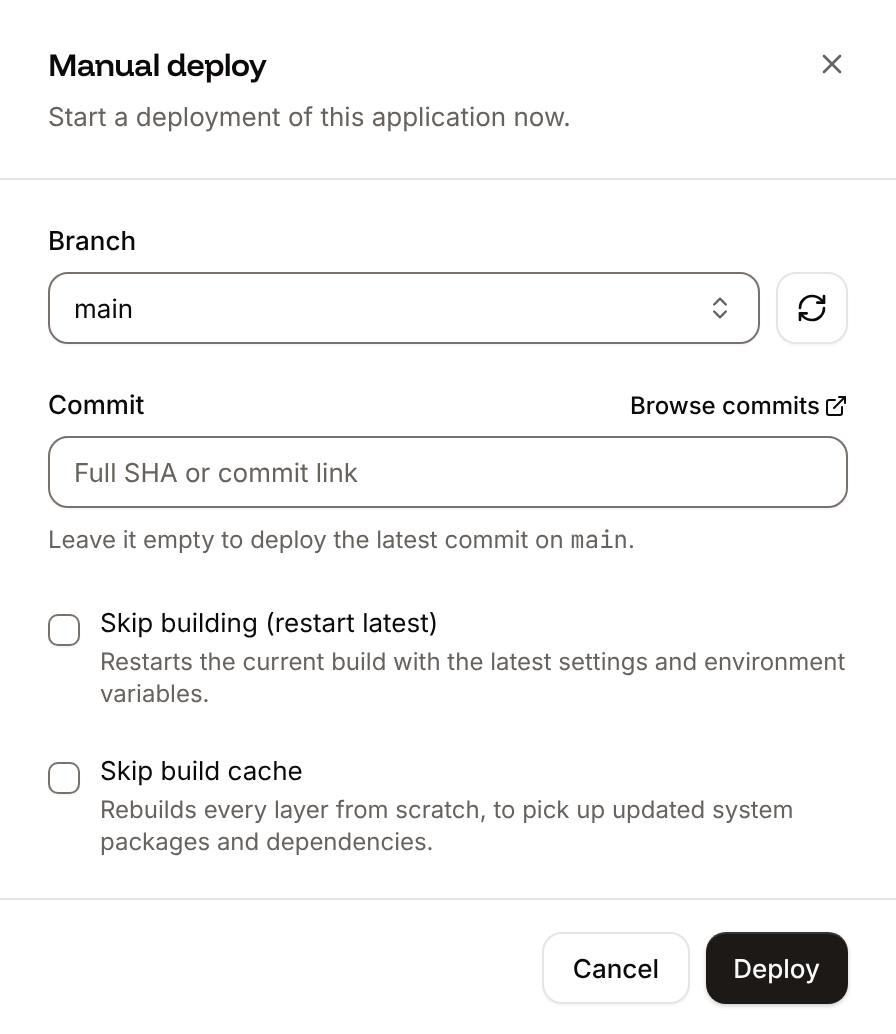
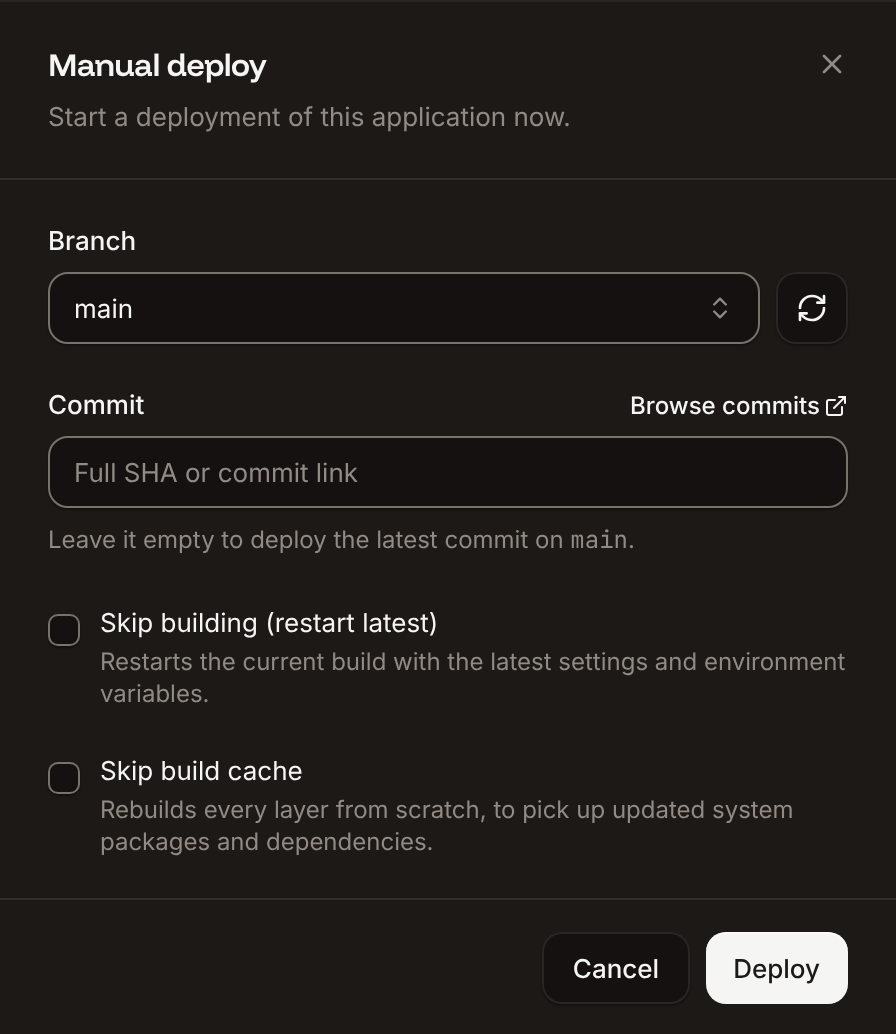
A pasted commit link shows as its SHA when you leave the field. The commit must be in the branch’s history, or the build fails when Sevalla checks it out. The sheet refuses anything else before deploying:
- A short SHA, a branch name or any other text:
Paste the commit’s full 40-character SHA, or its link - A link to a commit in another repository, such as a fork:
Paste a commit from <owner>/<repository>, not another repository
Deploy undeployed changes
When you change a setting that needs a deployment (an environment variable, a process, the build strategy, the source), a bar at the bottom of the application’s pages shows 1 undeployed change (or more). Click Deploy in the bar to apply them, or click the text to review them first in the Undeployed changes sheet:- Build changes are applied by building the application again.
- Runtime changes are applied by restarting it, without a new build.
Deploy automatically on push
With automatic deployments on, Sevalla deploys every push to the application’s default branch. They’re available for private repositories on GitHub, GitLab and Bitbucket, not for public repositories or Docker images.1
Open auto-deploy
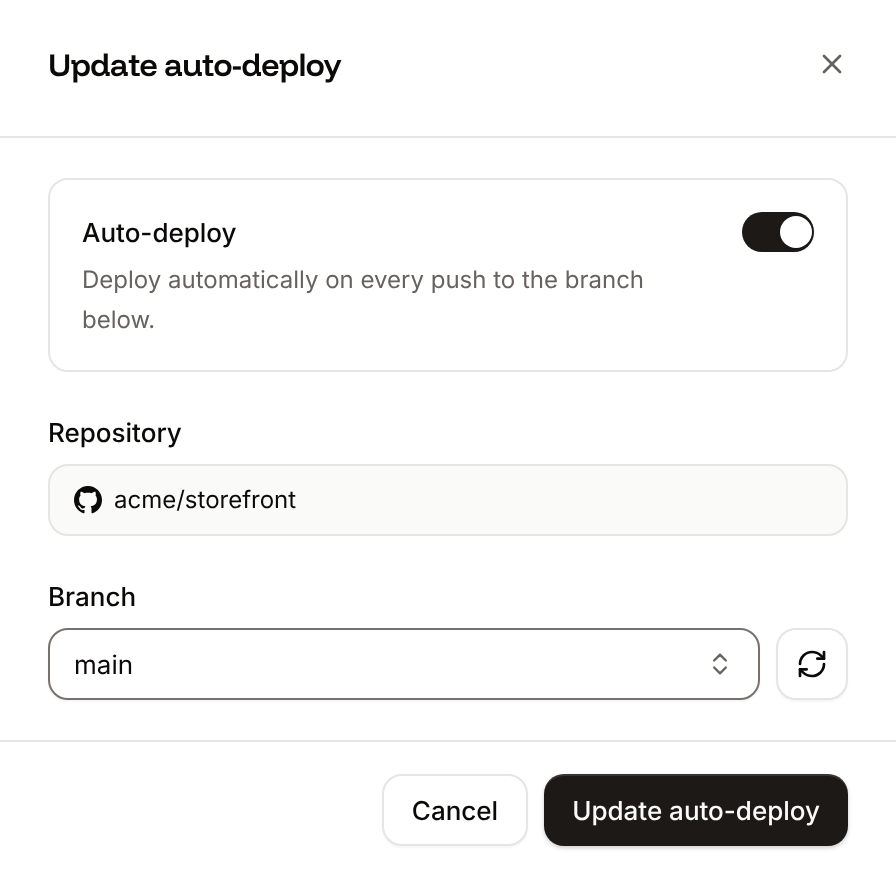
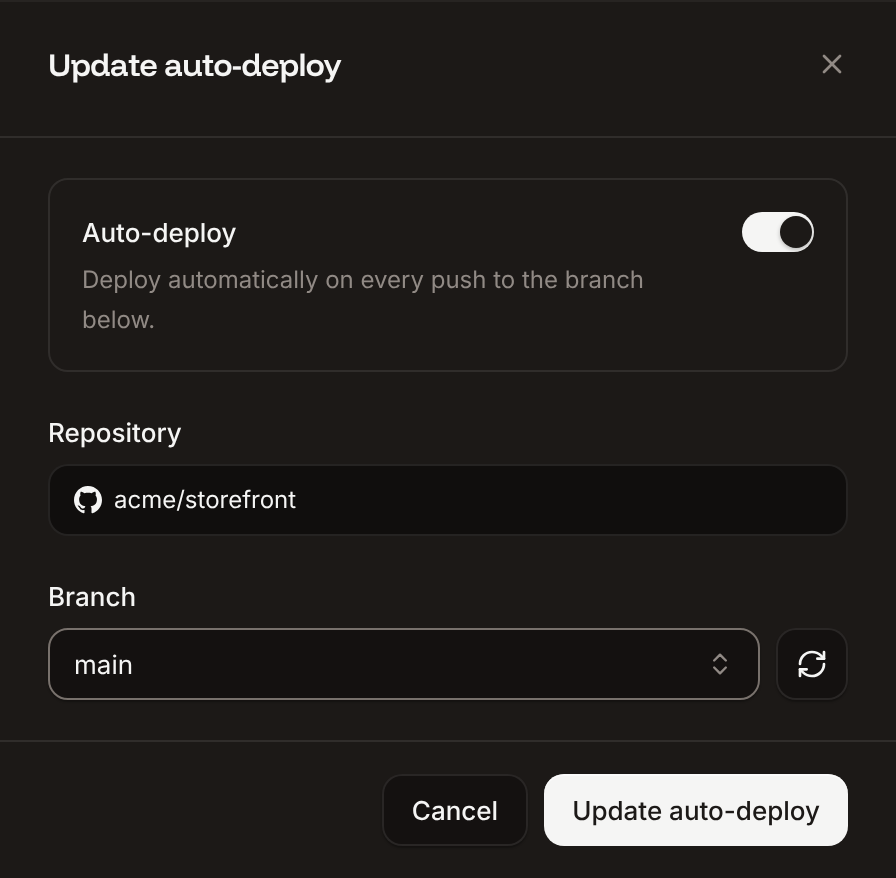
On the application’s Settings tab, in the Auto-deploy section, click Update auto-deploy.
2
Turn it on
Turn on Auto-deploy and choose the Branch to deploy from.
3
Save
Click Update auto-deploy.
- Only pushes to the default branch deploy. Pushes to other branches and pull requests don’t (for pull requests, use preview apps).
- Each push deploys the pushed commit and queues behind any running deployment.
- Commit messages such as
[skip ci]don’t skip a deployment. To skip pushes that change only some files, use deploy paths. - Pushes to a suspended application, or to an application of a suspended company, don’t create deployments.
- Sevalla receives pushes from GitHub through the Kinsta GitHub App, and from GitLab and Bitbucket through a webhook it adds to the repository. If it can’t add that webhook, it turns automatic deployments off for the application.
Deploy only when some files change
Deploy paths decide which pushes start an automatic deployment, by the files each push changes. Use them in a monorepo, where one repository holds more than one application, or to skip deployments for documentation-only changes. They apply only to automatic deployments on push: deploying by hand, with a deploy hook or by promotion always deploys.1
Open deploy paths
On the application’s Settings tab, in the Deploy paths section, click Update deploy paths.
2
Choose the mode
Click Allow paths to deploy only when matching files change, or Ignore paths to skip pushes that change only matching files. No deploy paths deploys every push.
3
Add the patterns
Enter a pattern in Path #1, for example
apps/storefront/**. Click Add deploy path for more.4
Save
Click Update deploy paths.
An application uses either allow paths or ignore paths, not both. A skipped push still appears on the Deployments tab, with the status Skipped.
Patterns are glob patterns matched against each changed file’s path from the repository root:
Start patterns without
/, and match the case of your file names: Docs/** doesn’t match docs/readme.md.
Deploy with a deploy hook
A deploy hook is a secret URL that starts a deployment of the application’s default branch (or its saved Docker image) when it receives aPOST request. Use it from CI, a scheduled job, or any tool that can send an HTTP request. It works for Git and Docker image sources.
1
Enable the hook
On the application’s Settings tab, in the Deploy hook section, click Enable deploy hook, then confirm with Enable deploy hook.
2
Copy the URL
Copy the Deploy hook URL. It looks like
https://hook.sevalla.com/apps/<app-id>/deploy/<secret>.3
Call it
Send a
POST request to the URL. It needs no body and no other authentication.SEVALLA_DEPLOY_HOOK_URL): anyone who has it can deploy the application. A deployment with the trigger Deploy hook appears on the Deployments tab.
The hook always deploys the latest commit of the default branch: it reads no body, query string or branch. Its responses:
While your company is being migrated to Oracle Cloud Infrastructure, deploy hooks return
403 with Your company is being migrated to new infrastructure. Changes are disabled until the migration finishes. See During your migration.
To replace a URL that leaked, click Regenerate and confirm: the old URL stops working right away. To turn the hook off, click Disable deploy hook and confirm; enabling it again gives a new URL.
Redeploy a deployment
Redeploying runs an earlier deployment again with the application’s current settings and environment variables. For a Git source it builds that deployment’s commit again; for a Docker image it pulls that deployment’s image again.1
Find the deployment
On the application’s Deployments tab, click ⋯ at the end of the deployment’s row, or open the deployment.
2
Redeploy
Click Redeploy, then confirm with Redeploy.
Roll back a deployment
Rolling back puts the previous version of your code back without building it again. Sevalla takes the most recent successful deployment of a different commit than the latest deployment, and rolls its image out as a new deployment. The rollback uses the application’s current settings, processes and runtime environment variables; only what’s inside the old image (the code and the build-time variables of that build) goes back. Rollback is available for Git sources. For a Docker image source, redeploy the earlier deployment instead.1
Find the deployment to go back to
On the application’s Deployments tab, click ⋯ on the successful deployment before the live one, or open it.
2
Roll back
Click Roll back to this. The Roll back dialog names the commit you’ll get. Click Roll back.
Cancel a deployment
You can cancel a deployment that’s Queued or Deploying. The application keeps running its current version.1
Find the deployment
Click Cancel in the Deployment in progress bar at the bottom of the application’s pages, click Cancel deployment on the deployment’s page, or click ⋯ on its row, then Cancel deployment.
2
Confirm
In the Cancel deployment dialog, click Cancel deployment. Keep deploying closes the dialog without cancelling.
Deployment details
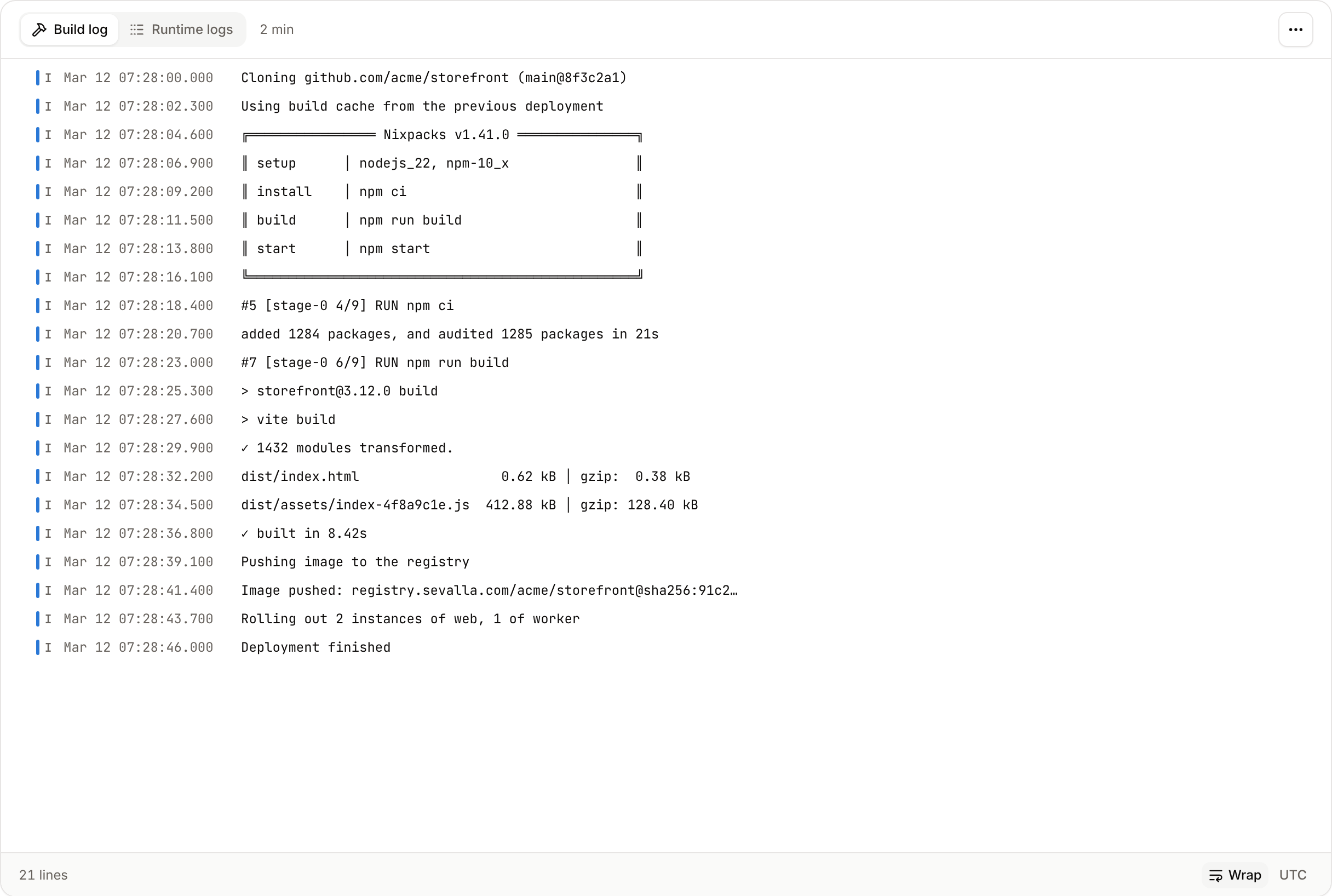
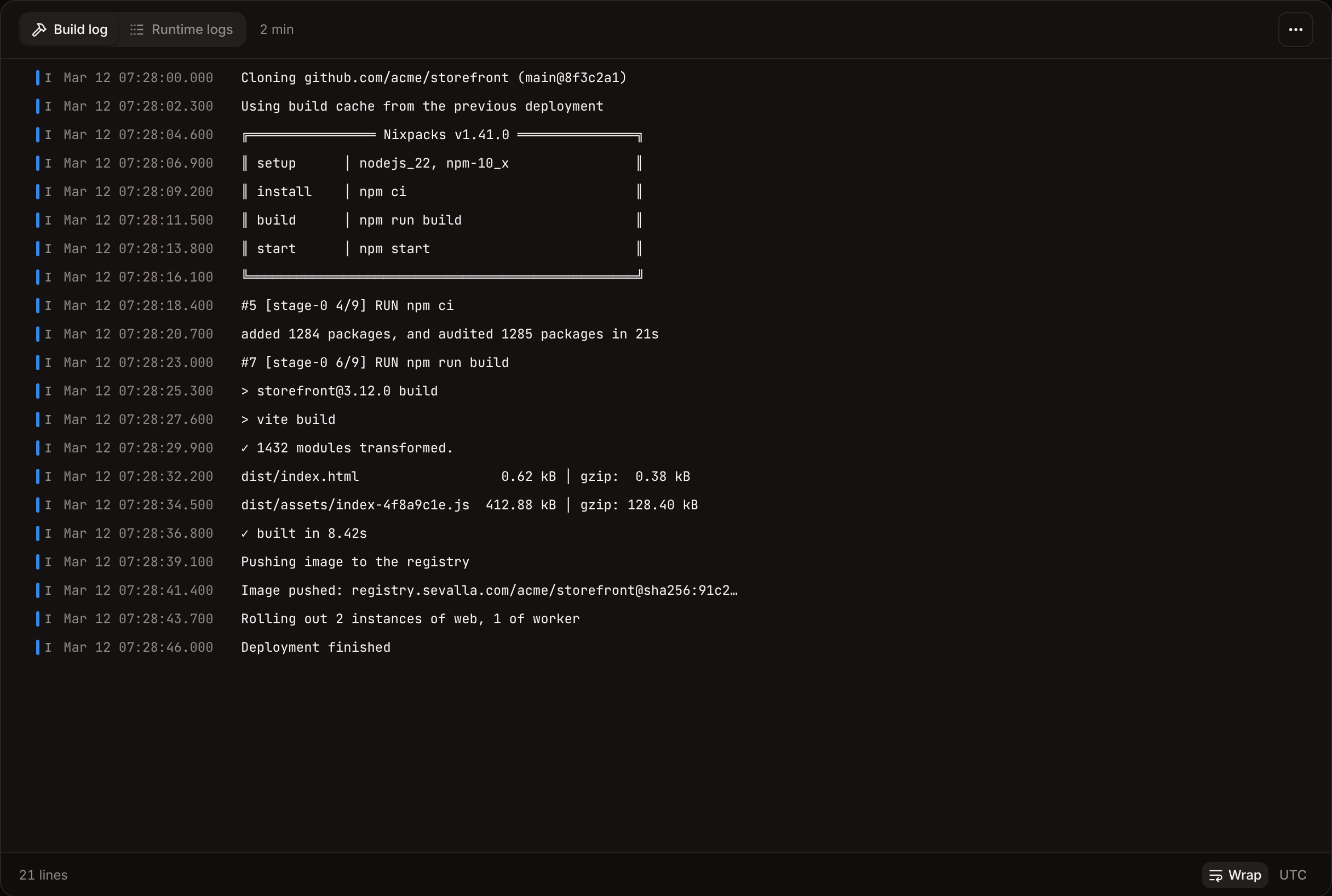
Click a deployment’s message on the Deployments tab to open its page:
Log lines can take up to 2 minutes to appear. When a deployment you’re watching finishes, the page switches to its runtime logs. In the list on the Deployments tab, Dockerfile changed marks a deployment built from a new Dockerfile version.
Sevalla also passes the deployment’s details to the build as environment variables, such as
SVL_DEPLOYMENT_ID, SVL_DEPLOYMENT_COMMIT_SHA and SVL_DEPLOYMENT_BRANCH. See Variables Sevalla sets.
API and CLI
In the API, the deployment’s
trigger field holds MANUAL_DEPLOY, AUTO_DEPLOY, DEPLOY_HOOK, PROMOTE or ROLLBACK_DEPLOYMENT, and type is manual or automatic. The build log endpoint returns the last hour unless you pass from.